Categories
Uncategorized

Apple Shortcut – Talking Reminder

Apple Shortcuts screen shot

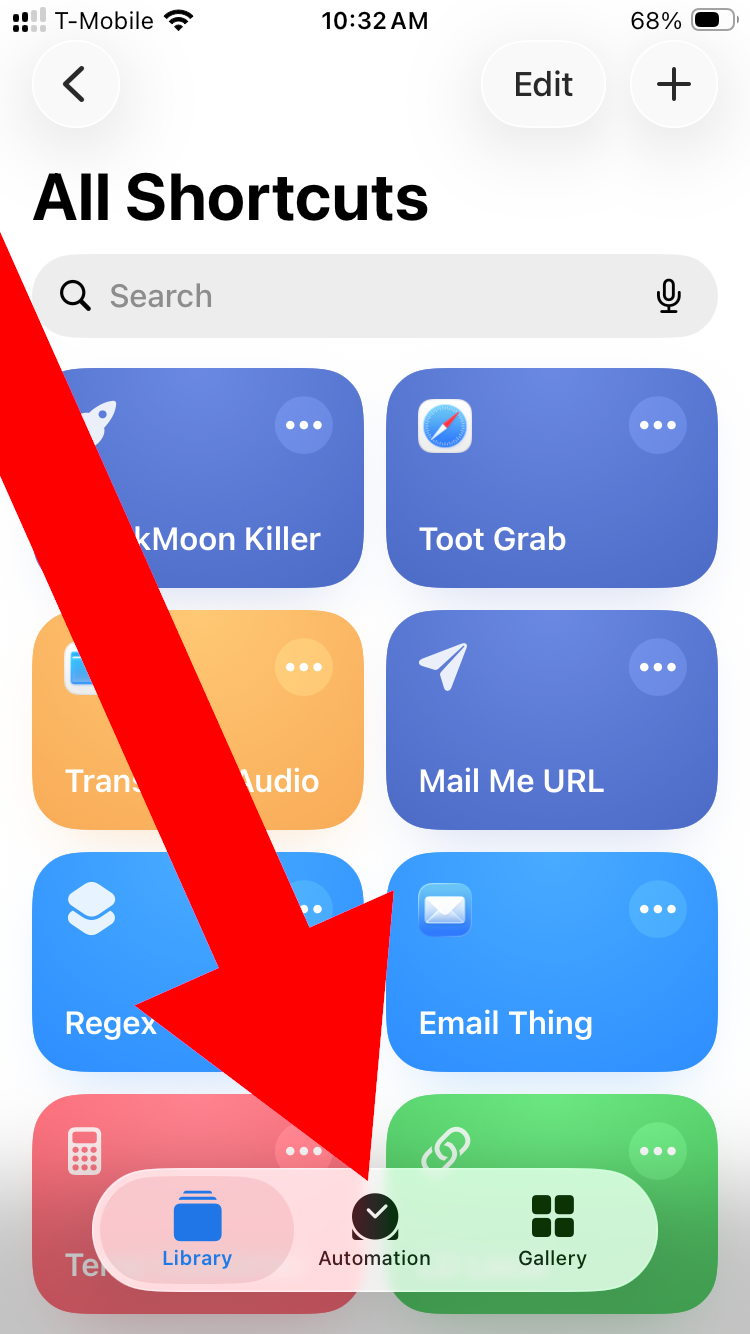
I previously mentioned Apple Shortcuts (with a silly example) so here’s another one using the “Automation” feature.
Apple Shortcuts screen shot

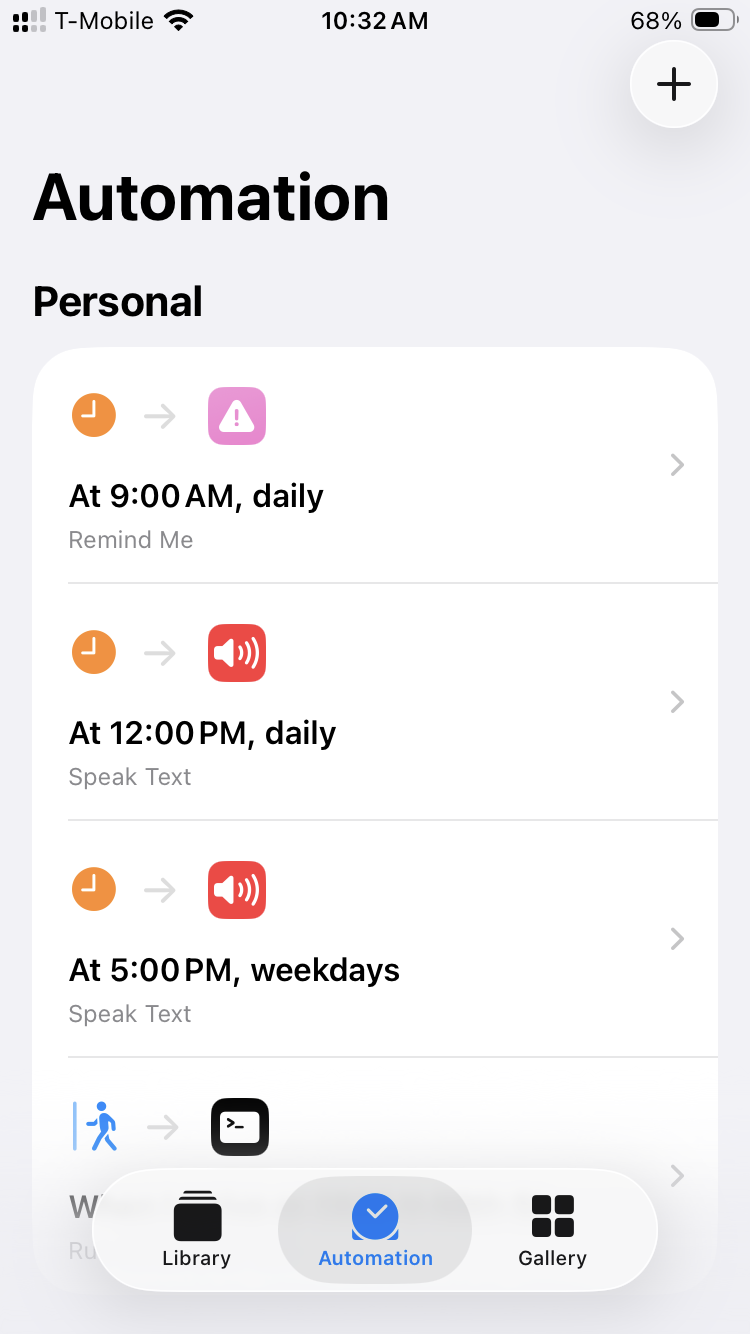
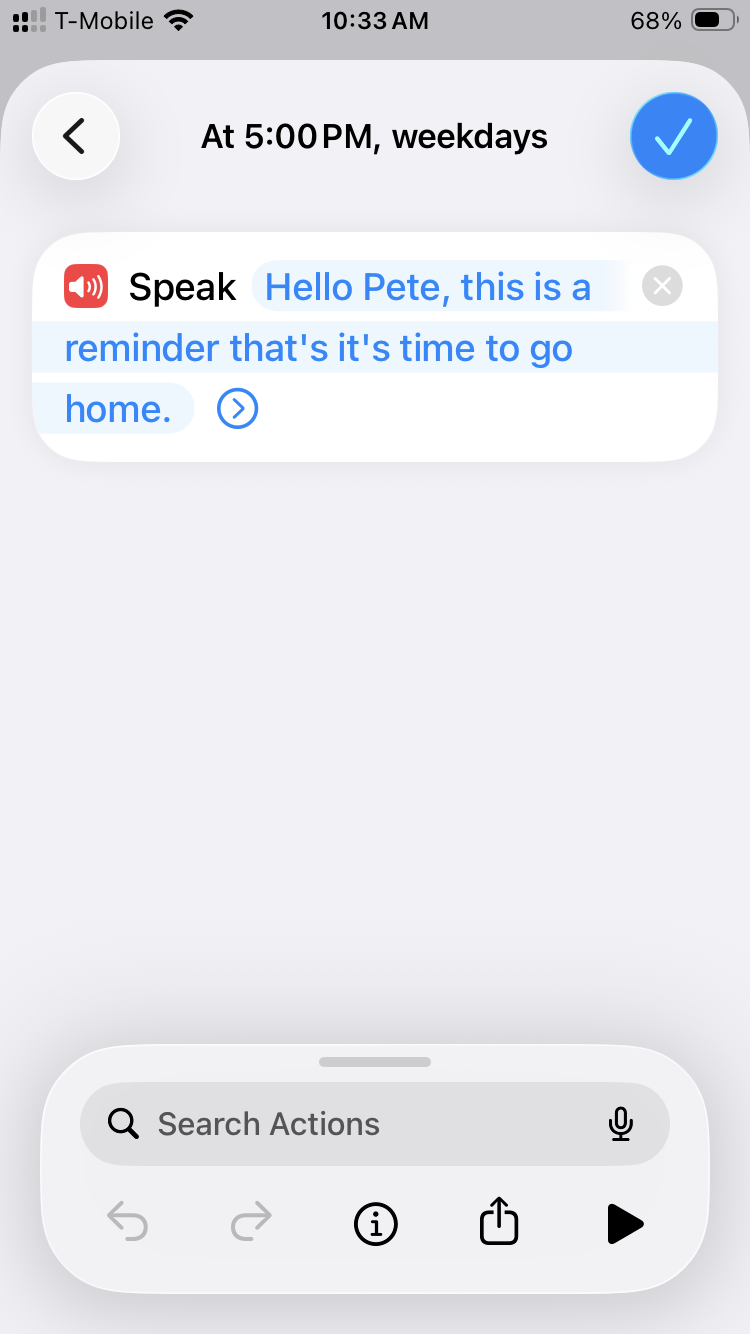
You can set an Automation to run at a specific time of day, so I have one at noon to remind me to take my medication and another at 5pm to remind me to leave work.
Apple Shortcuts screen shot

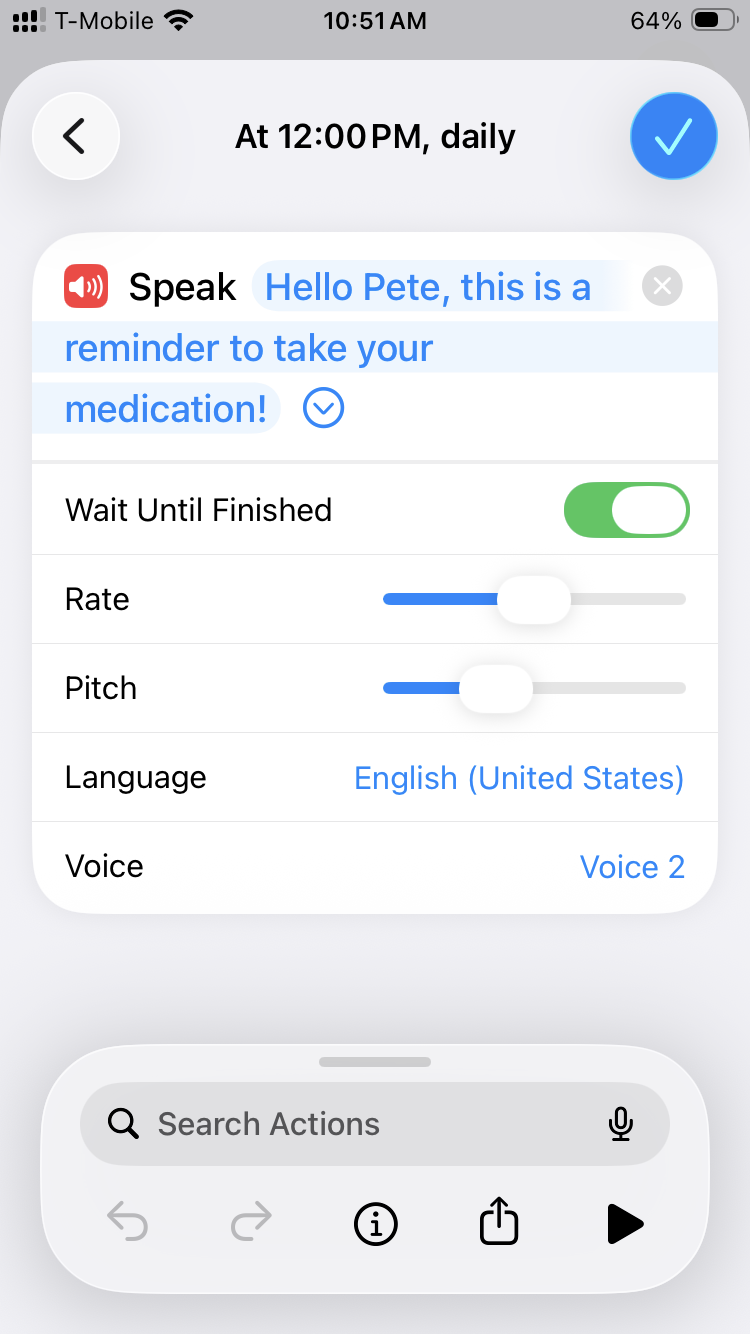
You can also set an Automation to Speak Text. Yeah, just like the say command on macOS. I used to set up cron jobs to run scripts with the say command to remind me of things.
Apple Shortcuts screen shot

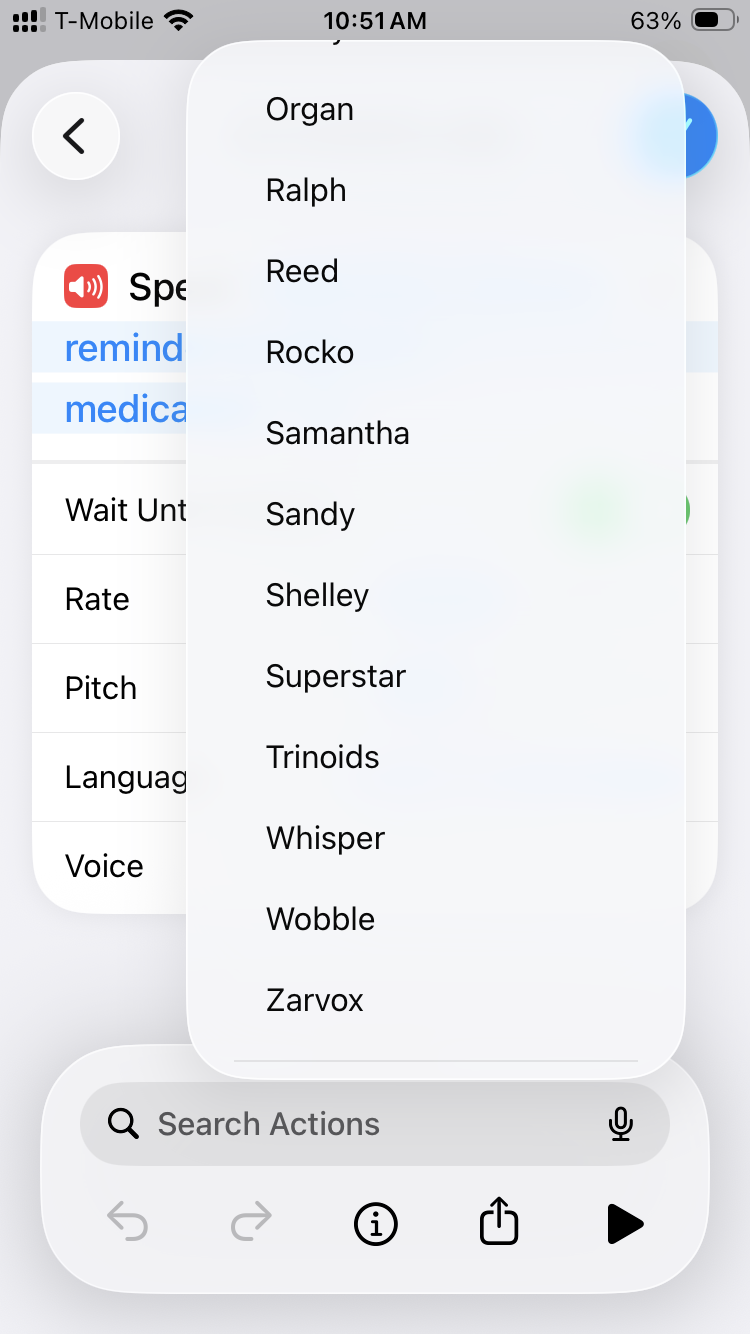
But wait! Remember all those awesome voices like Organ and Zarvox? They’re all here to hear!
Apple Shortcuts screen shot

Funny story, the first time I set these up I was home alone and heard someone talking from another room in the house and I freaked out! I thought someone else was in my house. Nope, just my phone talking to me.

So yeah, there could be some good prank potential with this feature if you can access someone’s phone for a few minutes.


This post was shared on Mastodon.
Categories
Uncategorized

Apple Shortcut – Toot Grab

Apple Shortcuts

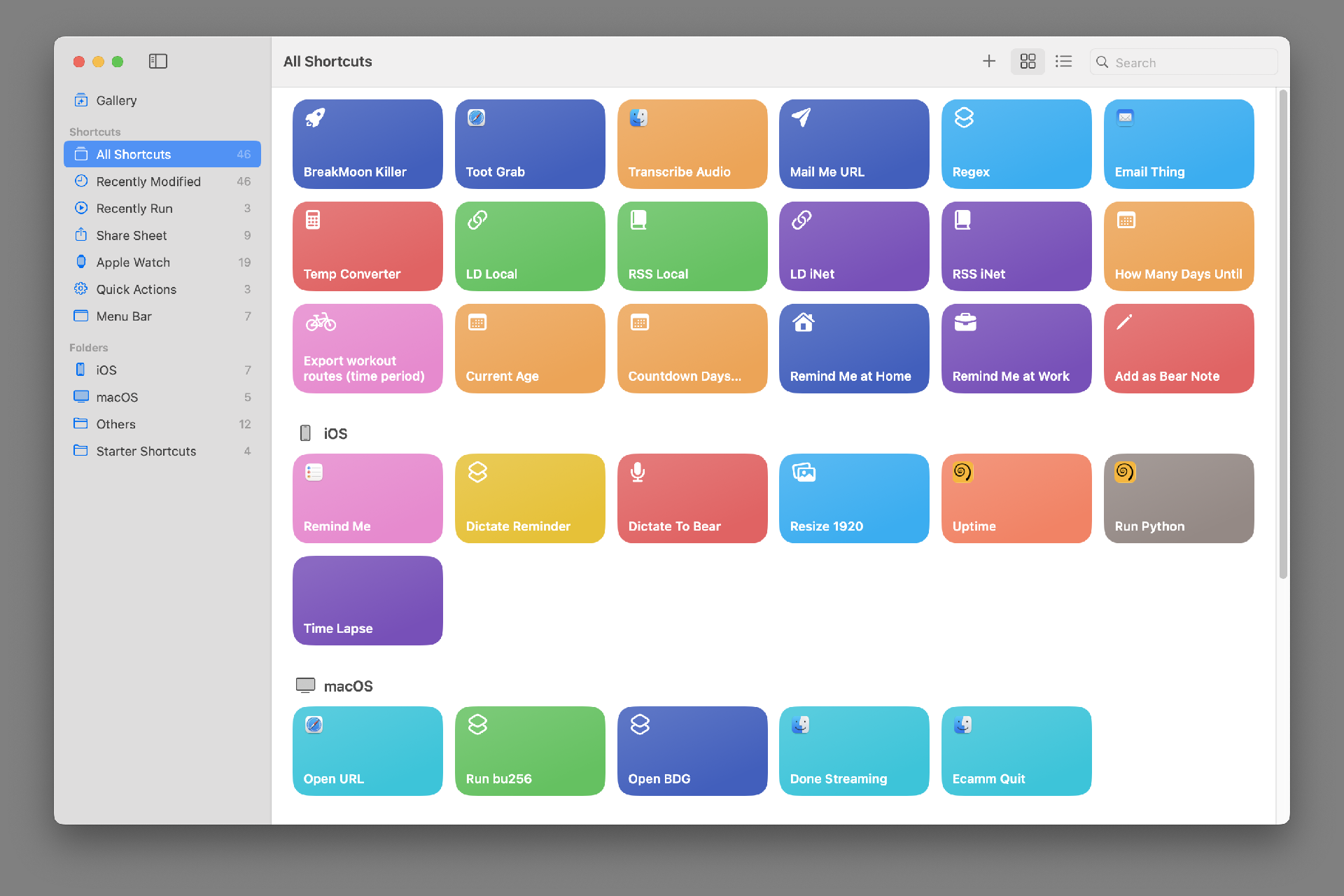
I’ve been messing around with Apple Shortcuts lately. It’s a weird thing, like most things from Apple that try to make complex things simple. Shortcuts (as we’ll call them) can run on macOS and iPadOS and iOS. (So on a Mac, an iPad, and an iPhone.) Not all shortcuts run on all seamlessly, as they may rely on things that work on one platform but not another.

Here is a Shortcuts User Guide but it’s for iOS (iPhone and iPad) and where’s the macOS guide? And try searching for “Apple Shortcuts” and you get plenty of results about keyboard shortcuts. Sigh…

But whatever. Besides all that, I’m just going to share some silly (and maybe some useful) shortcuts with you. I’ll show you them (so you can make your own) and explain them.

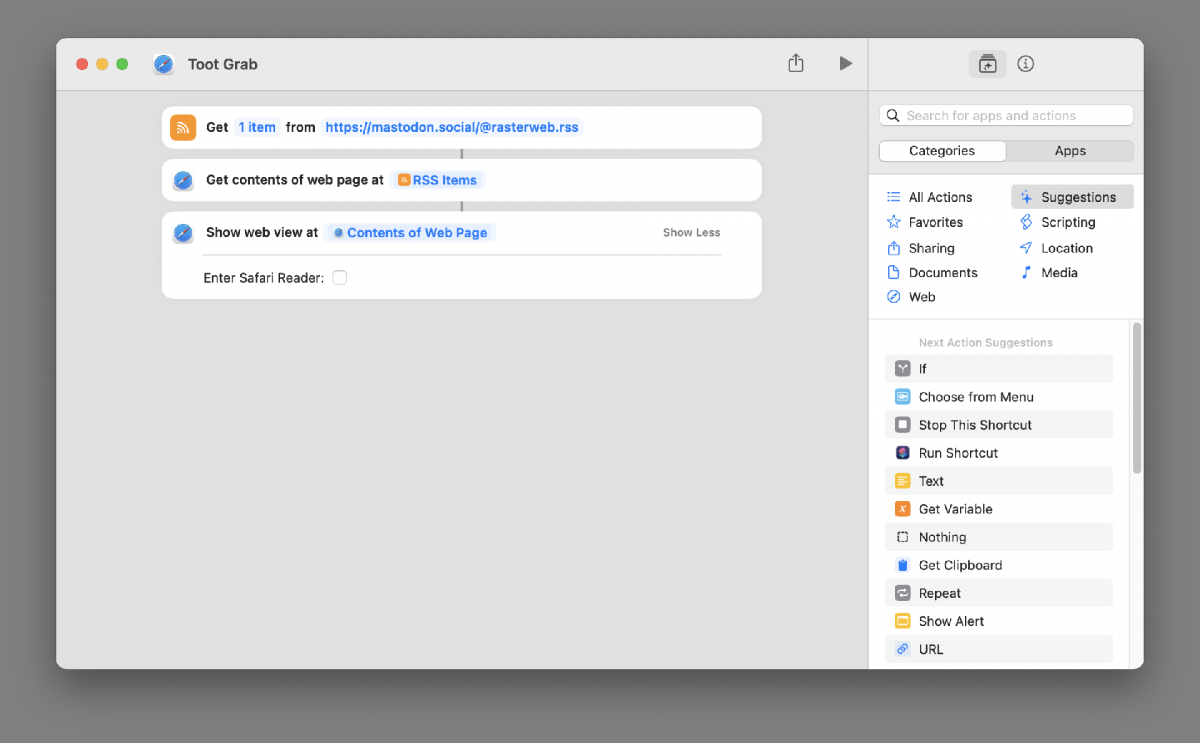
Toot Grab Shortcut

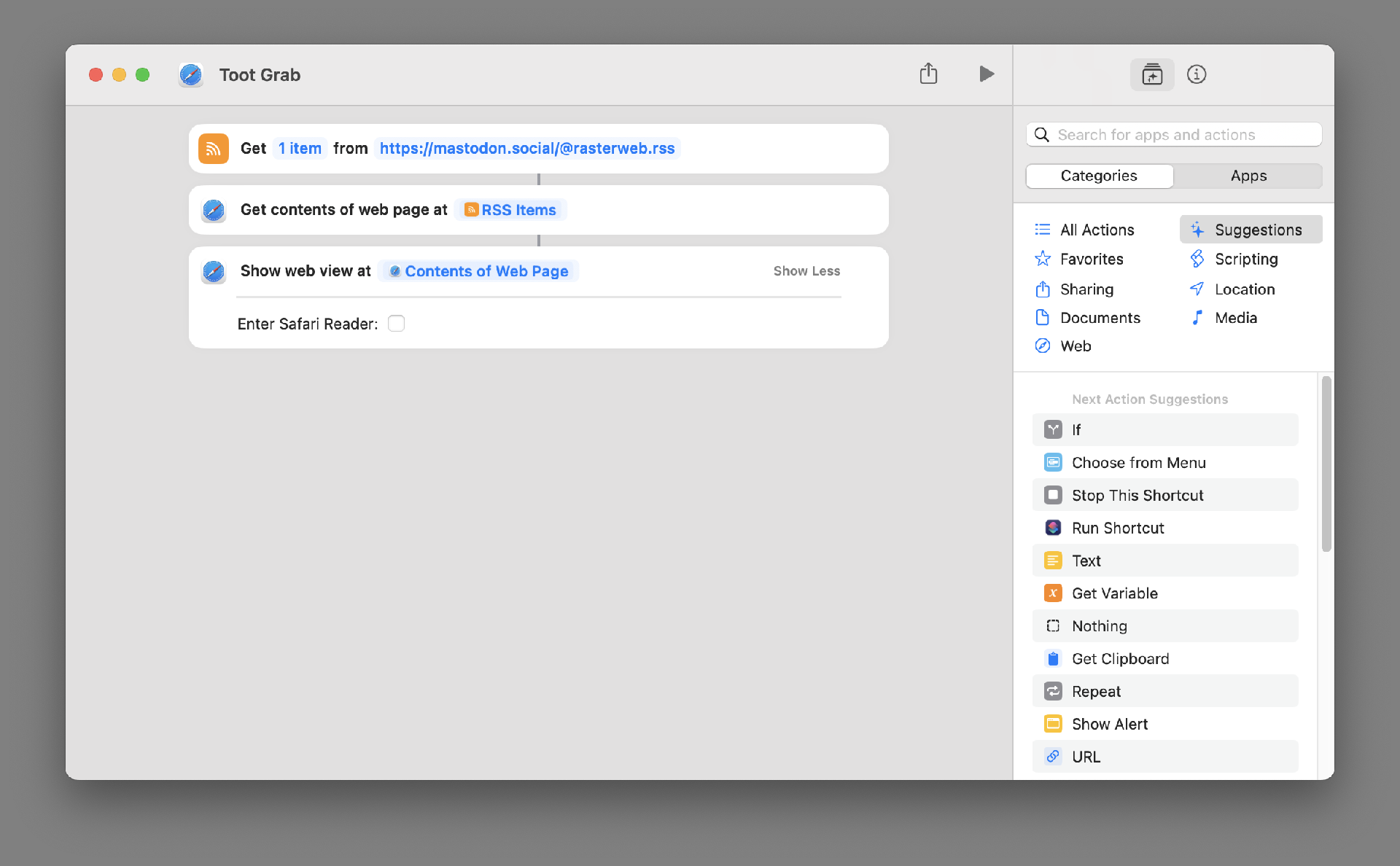
This one grabs the most recent Toot I’ve posted on Mastodon and displays it. You could change to use any RSS feed. Either another Mastodon account, or a blog you like, or any feed. (And it works on macOS, iOS, and iPadOS.)

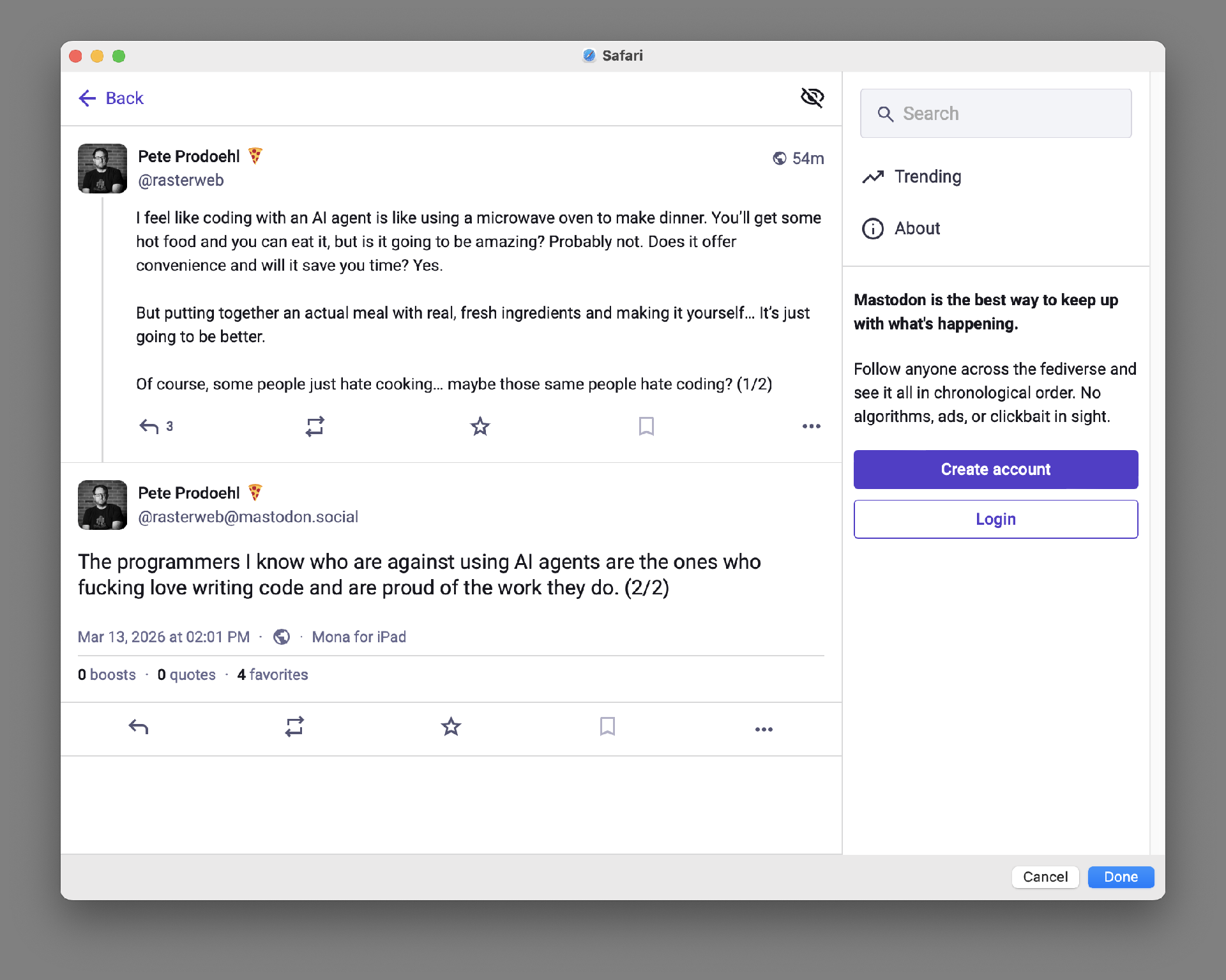
Example output of the Shortcut

Here’s what you see when it runs. It does run a bit slow (at least on the 2018 MBP I am typing on right now) but again, this is just a silly demo.

To make your own version you’ll need to explore Shortcuts and find the commands you need.

(And yes, I know I can share shortcuts to make them easy to install, but I’d prefer you explore it and look around and figure things out.)


This post was shared on Mastodon.