Categories
Uncategorized

FamiLAB

FamiLAB

I was in Orlando, Florida last week and got to stop by FamiLAB for a quick tour. They moved into their current location in 2015, and there was a full build-out, and they’ve got a space that appears to be what they wanted. I snapped a few photos along they way, so enjoy!

LED Lamps

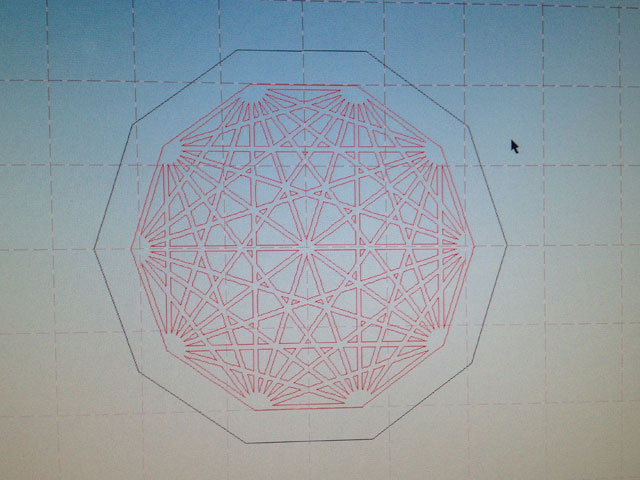
The lobby/lounge area had some couches and lots of video game systems, and this awesome set of LED lamps that a member made. They feature laser-cut wood and rice paper along with RGB LEDs and a microcontoller.

stained glass logo

FamiLAB has a stained glass workbench, and this is a piece a member made (their first piece ever!) which features the FamiLAB logo. I had though it was just one big piece of glass cut to that shape, but I was told each individual section is a piece of glass, and they all get attached together. Impressive!

3D Printer

Hey, it’s a 3D Printer! It looks like an older CubeX that is being ripped apart to install some open source electronics. (I’m speculating here…) There’s also a local 3D Printer company called DeltaMaker that some of the members are involved with. (I did see some DeltaMaker machines while at the Orlando Science Center.)

Film in the Darkroom

This makerspace has an actual darkroom… for film, and it works, and it’s functional. This is somewhat rare, from what I’ve seen.

Vending Machine

There’s a vending machine where you can buy electronic parts and other things. There was mention of trying to stock it with items some of the members make, including fine chocolates and some amazing jerky.

Haas Mill

There’s a Haas Milling Machine that took some time to get up and running, but cost almost nothing to acquire and repair.

Lathe

An old lathe is a good lathe… Solid construction, heavy as hell. Supposedly there was talk of cleaning it up real nice but how can you disturb a machine with so much character and history?

CNC Router

There’s a big CNC Router for cutting large sheets of wood or other materials…

FamiLAB

The classroom, and the office-type rooms were all brightly lit and had white (well, very light grey) walls. It felt much different than so many of the Midwest makerspaces that are in dingy old industrial buildings. Granted, they did to a lot of the build-out of the space, and made conscious decisions about the way it should look.

When I looked up at the tall ceilings I asked about building a mezzanine or second floor, and that’s when I was reminded that in Florida it probably gets to 120° F at the top of the building in the summer. They’ve got some big AC units, but not enough to combat that sort of heat! They also have no furnace, which again, sounds weird to me being a Wisconsin resident.

One more Florida thing, there’s actually a swamp next to the building, which is handy, because that’s where they vent their laser cutter exhaust. Oh, and their laser cutter & 3D printing room has a super-seal on the door to ensure all fumes get sucked out of the building, and none of them leak back into the rest of the space.

Overall, FamiLAB looks like a pretty cool space with some cool people. A bunch of them are also heavily involved in Maker Faire Orlando, which is also excellent.

Oh, I also made a very brief visit to Skycraft Parts & Surplus, which is pretty much the equivalent of American Science & Surplus if you live in Milwaukee, or Ax-Man Surplus if you live in Minneapolis. Does every city have these kinds of stores?

Categories
Uncategorized

The Concrete Hammer

Concrete Hammer

It’s been nearly a year since I introduced The Ice Hammer to the world, and yes, I’ve been accused of having an obsession with hammers, but I swear this time it’s (mostly) a coincidence.

The gang at BBCM are doing a MakeShift event this week titled Concrete Mixer, which is an adults-only thing at the children’s museum, and the topic is concrete. Instead of just being jealous of what the BAM folks have been up to with casting concrete in foldable paper forms and digging into the concrete/art connection, I decided to get in on the fun as well. John’s been busy casting concrete too, and he gave me a can of concrete to play with.

So how could I not use the vacuum formed hammer mold I made at a previous MakeShift event to create a concrete hammer?

Concrete Hammer in mold

I’ve been traveling a lot for work, and I knew that concrete takes some time to set and harden, so I was in a rush to mix it up and get it into the mold before I left town. I frantically mixed and scooped the concrete into the mold at about 10pm before rushing off to bed for an early morning flight.

Concrete Hammer (Head)

Air bubbles and lumps? I’m sure there’s a few… But the important part was that I got it ready to sit around and dry for a week.

Concrete Hammer

When I got back I took a look at the surface and it looked pretty solid, but I still didn’t trust it was fully set, so I let it sit for another day. Getting it out of the mold proved a bit tricky. I had taped up the cracks in the mold that occurred the last time I made an ice hammer, and that made it a bit more stiff. I did manage to get it out, but I ended up destroying the mold. No more ice (or concrete) hammers!

Hammer Mold

Even though it’s concrete, I’m pretty sure one good swing would destroy it. For now I’m just going to consider it an art object, and not a fully functional hammering device.

hammer-head

If you’re available Thursday, February 4th, 2016 and want to learn more about working with concrete, plan on attending MakeShift. Tickets are $10 and you can get them online. (I hear there will also be “spiked milkshakes” and other refreshments.)

Categories
Uncategorized

Raspberry Pi Slide Show

Slideshow

I’ve been using Raspberry Pi single-board computers for video players for years now, and I’ve also used them as audio players, but I was missing a good way to use them as slide show devices… Until now.

I’ve used Screenly OSE for the MMPIS at Milwaukee Makerspace, and while Screenly is great for what it is (a network-connected, browser-controllable, digital signage device) sometimes you don’t want all the options and features and you don’t have a network. So I needed another solution.

I found fbi, “the Linux framebuffer imageviewer”, which can run at boot up and display a folder full of images at full screen with a configurable delay between changing images. Perfect!

Boot Volume

Now, there’s one more thing… If I’m going to put this somewhere that doesn’t have a network connection (like, in a museum) I want to be able to easily update the slides. The slides won’t be changing daily, but may be changing every month or so. For something like this it’s easy to store the images directly on the /boot volume, which is accessible on the SD card when you pop it in a Mac OS X or Windows computer.

You’ll notice a folder names “slides” and a file named “slideshow.sh”, which do the hard work here. It’s actually ridiculous to call it “hard work” because it’s dead simple. The slides folder contains images which will be displayed in alphabetical order. (Sadly, my screen shot does not reflect this!) In an ideal world you’d name your images 0001.jpg, 0002.png, 0003.jpg, etc. Just name them in order, and they’ll display in order. Easy.

Images

The SD card only has about 40MB of free space for you to put images on, but with JPG compression of photos, you can probably fit plenty of them. OK, so once you’ve got your folder full of images (which you can easily update on the SD card) you’ll need some way to run the slideshow.sh script.

Typically I do a sudo nano /etc/rc.local and add what’s needed to run my script. In this case it’s the /bin/bash /boot/slideshow.sh & you see on line 20. Oh, don’t forget to set the Pi to auto-login at boot. Since it’s been added to recent versions of Raspbian you don’t even have to muck around anymore.

#!/bin/sh -e
#
# rc.local
#
# This script is executed at the end of each multiuser runlevel.
# Make sure that the script will "exit 0" on success or any other
# value on error.
#
# In order to enable or disable this script just change the execution
# bits.
#
# By default this script does nothing.

# Print the IP address
_IP=$(hostname -I) || true
if [ "$_IP" ]; then
  printf "My IP address is %s\n" "$_IP"
fi

/bin/bash /boot/slideshow.sh &

exit 0

So yeah, we’re all set… but you probably want to see the code in slideshow.sh, right? This is it. Right here. Yes, it’s pretty much just two lines. Linux is like that sometimes… It’s not hard implementing something, it’s just hard finding out exactly how to implement something. It can be hard finding those two lines that you need! (The 200 may need adjustment. Longer may be better, but in my testing on a Raspberry Pi 2 Model B it worked well.)

#!/bin/sh

sleep 20

fbi -a -t 6 --blend 200 --readahead --noverbose -T 1 /boot/slides/* >/dev/null 2>&1

There’s some parameters you can set, like -t 6 which sets each slide to display for 6 seconds, and the blend thing, which sort of works. Hey, it’s a slide show, okay!?

I’ll probably work on this more, but I was pleased to find a solution so I thought it was worth sharing.

Categories
Uncategorized

Use a computer… FAST!

Text

I’ve been using computers for over three decades now, and about two of those decades have been professionally, you know, as part of my job for work. When using a computer I like to get things done, like, fast.

Back when I used Macs in the pre-OS X era I used BBEdit, which doesn’t suck, and along with the Finder of the day, I could do things really fast. I could edit files fast, and I could manage files fast. It was good.

Eventually I moved to Mac OS X, and found jEdit and things were slow at first. I even mentioned that it seemed like I was using a computer with gloves on. Things got faster.

Sometimes I see people use a computer and I get twitchy watching them try to select some bit of text, not starting at the end, or not double or triple clicking, or even just trying to retype some code instead of copying and pasting it.

I wonder if I could teach a class on using computers quickly, at least for dealing with text…

Of course I’ve also learned how to use find/replace, including regex, and tons of terminal tricks to deal with text and files and the like. And there’s still a ton I don’t know! There’s *nix tools that I could probably add to my toolbox to do things even more efficiently.

Anyway, if you feel like you could use a computer faster, you probably could. Really, in the old days we spent time waiting for computers, but if you’re dealing with text, chances are the computer is sitting around waiting for you.

Categories
Uncategorized

Video Installation (times six!)

Video Installation

Last summer Ray Chi got in touch with me about an installation he was doing for the Milwaukee Art Museum. He wanted a video screen that could be activated to play a video by touching a metal plate. Well, actually six videos and six video screens and six metal plates.

I told him I’d figure out how to get it all to work the way he wanted. I came up with a few ideas, one of which was using Processing, which I did get working, but at the time Processing wasn’t really running on the Raspberry Pi, at least not officially (or very well) and since the Pi was what we ended up choosing, I needed another solution.

For an installation that’s going to be running for years, simplicity and reliability are key. I had used Pis in the past many times for video players using omxplayer. Typically I’d just launch omxplayer on boot and have it play a video, looping, forever. For this application we wanted the video to play only when the metal plate was touched by a human hand (and then stop playing when someone stopped touching it) which meant capacitive touch.

Rather than spend a lot of time coming up with something that might work, I went with something that I was 98% sure would work. I used Adafruit’s Standalone Momentary Capacitive Touch Sensor Breakout attached to a Teensy LC. Why a Teensy LC? Because it’s a low-cost (LC!) Arduino-compatible microcontroller and it can emulate a keyboard.

Yes, a keyboard! If you have a USB keyboard connected to a Raspberry Pi computer while omxplayer is playing a video, you can just hit the space bar to play the video, and then hit it again to pause the video. Those are the two things we needed to do.

Video Player Controls

So, Raspberry Pi, running omxplayer to play the video, with a Teensy LC attached programmed to work as a USB keyboard, and triggered by a capacitive touch sensor, which was then connected to the metal plate. Simple!

There was this issue of……. timing.

So in theory, the Teensy would just need to send a space character to play the video, and it would do this when you touched the metal plate. But! (And it’s a Big But) the issue was that we wanted the video to start playing at boot and then pause at the beginning and sit there waiting… for someone to touch the metal to start the video playing. Rather than fire up the video via the typical Linux methods, we ended up just starting up the Pis, auto-logging in, and having them wait at the command line… yes, just sit their waiting, doing nothing… Sort of.

When the Pi booted up, it provided power to the Teensy, which then started running its sketch. The sketch would start at boot, wait 45 seconds to ensure the Pi was booted up and sitting there waiting at the command line, and then it would type:

/bin/bash /boot/video.sh

So we actually used the Teensy to send the text to the Pi (just as if a human typed it) which then fired up the script and started the video playing. The sketch would then wait 2.4 seconds and type a space character, which would pause the video. This set the state of things exactly where we wanted them. The video way paused, just waiting for the next command from the Teensy, which was… space, of course!

Now, there’s the concept of “rising edge” and “falling edge” when it comes to pressing buttons. A rising edge is the transition from low to high, and a falling edge is the transition from high to low. That’s a fancy way of saying we can tell when the button is being pressed, and when it’s being released. It’s best to use debouncing for this, and there’s a library for that.

Video Players Mounted

So with everything mounted in place we still had to deal with one issue. The HDMI displays worked find as long as they were turned on before the Raspberry Pi computers. If they were turned on at the same time the resolution wouldn’t set right, and the video would be letter-boxed. There were two options, one would be using two different power strips to get power to everything, with instructions for museum staff to follow a specific order. This wasn’t ideal, so we went with option two. I used a time delay relay so that one single power strip could be turned on, which would turn on the HDMI displays, and then a few seconds later turn on the computers. It worked. (And yes, I found out later I probably could have fixed the issue in software. Duly noted.)

Are there things we could have done better? Yes. Did we get the project done on time, and within (or under) budget? Yes. Was it fun and challenging? Yes and Yes. You may read this and think “Hey, you totally could have solved problem X by doing Y!” and you’d probably be right. I’ve found a number of things I’d do slightly differently if I were to do something like this again. That’s all part of experience, and learning, and sharing… right?

Video Player

When the installation was all done and tested, I got photos of everything, and then set to work on documenting it all. I delivered a 14 page manual on the construction and operation of the video players, along with the code and instructions on how to use one of the backup SD cards that was prepared in case of failure.

Besides, now I can (sort of) say that my work is in the Milwaukee Art Museum. ;)