Categories
Uncategorized

Kisnt KN85 75% Mechanical Keyboard

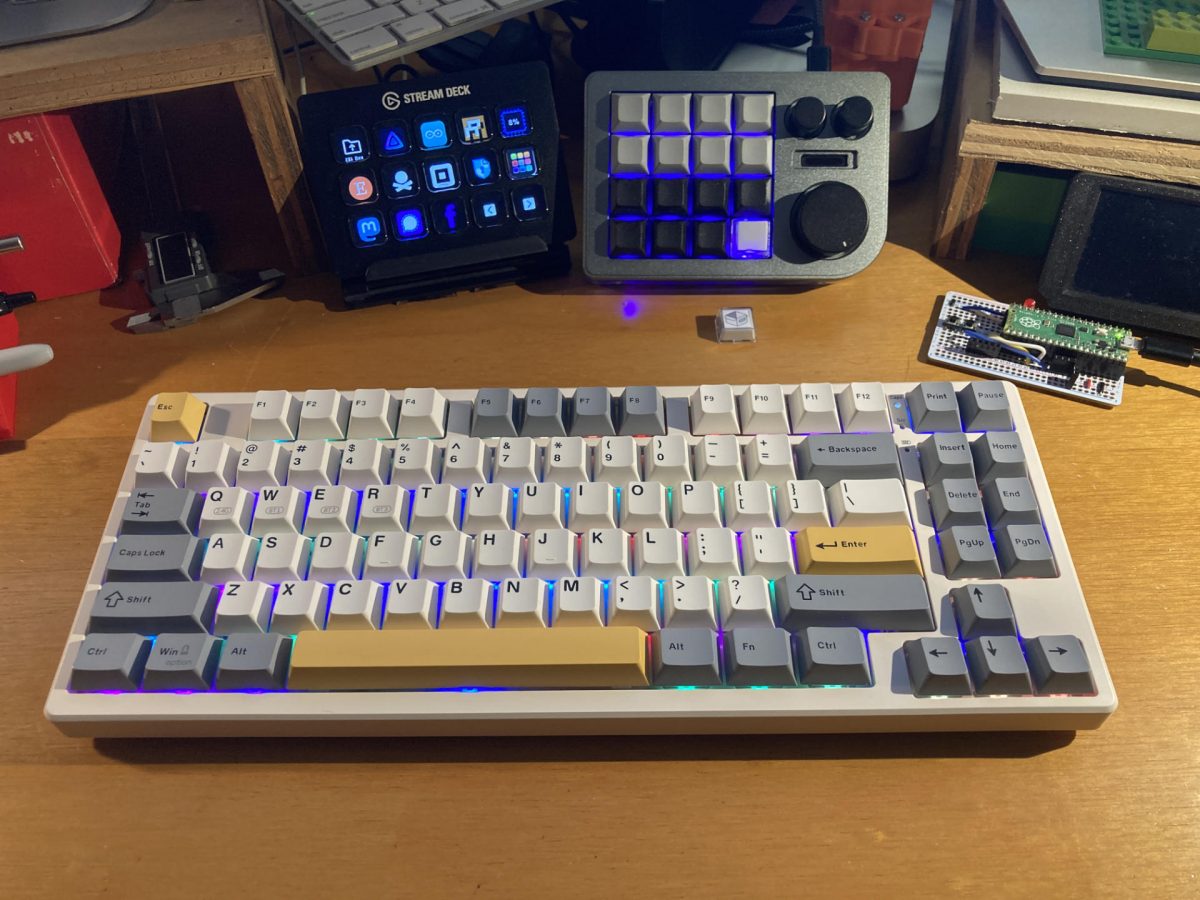
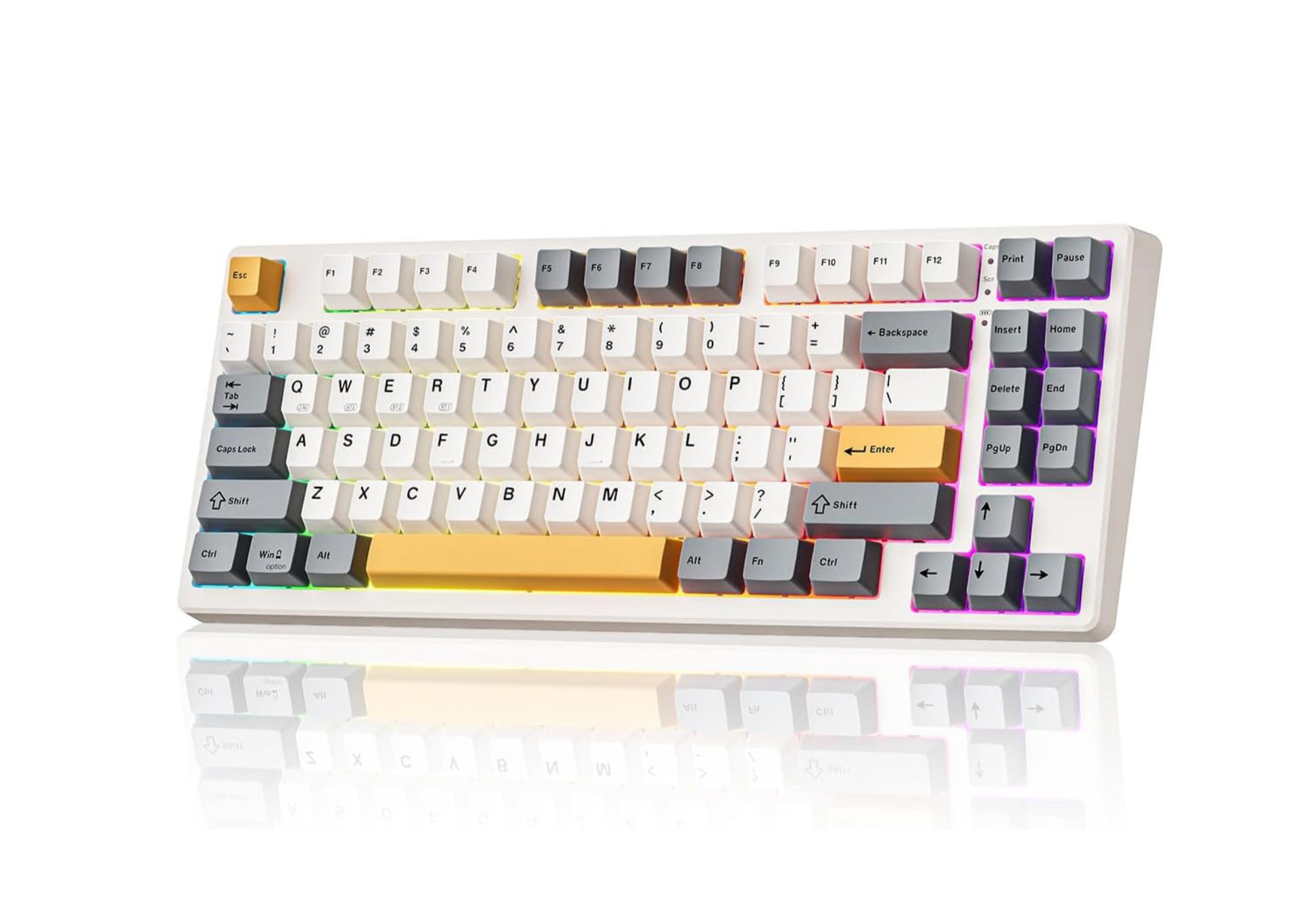
Kisnt KN85 Wireless Mechanical Keyboard

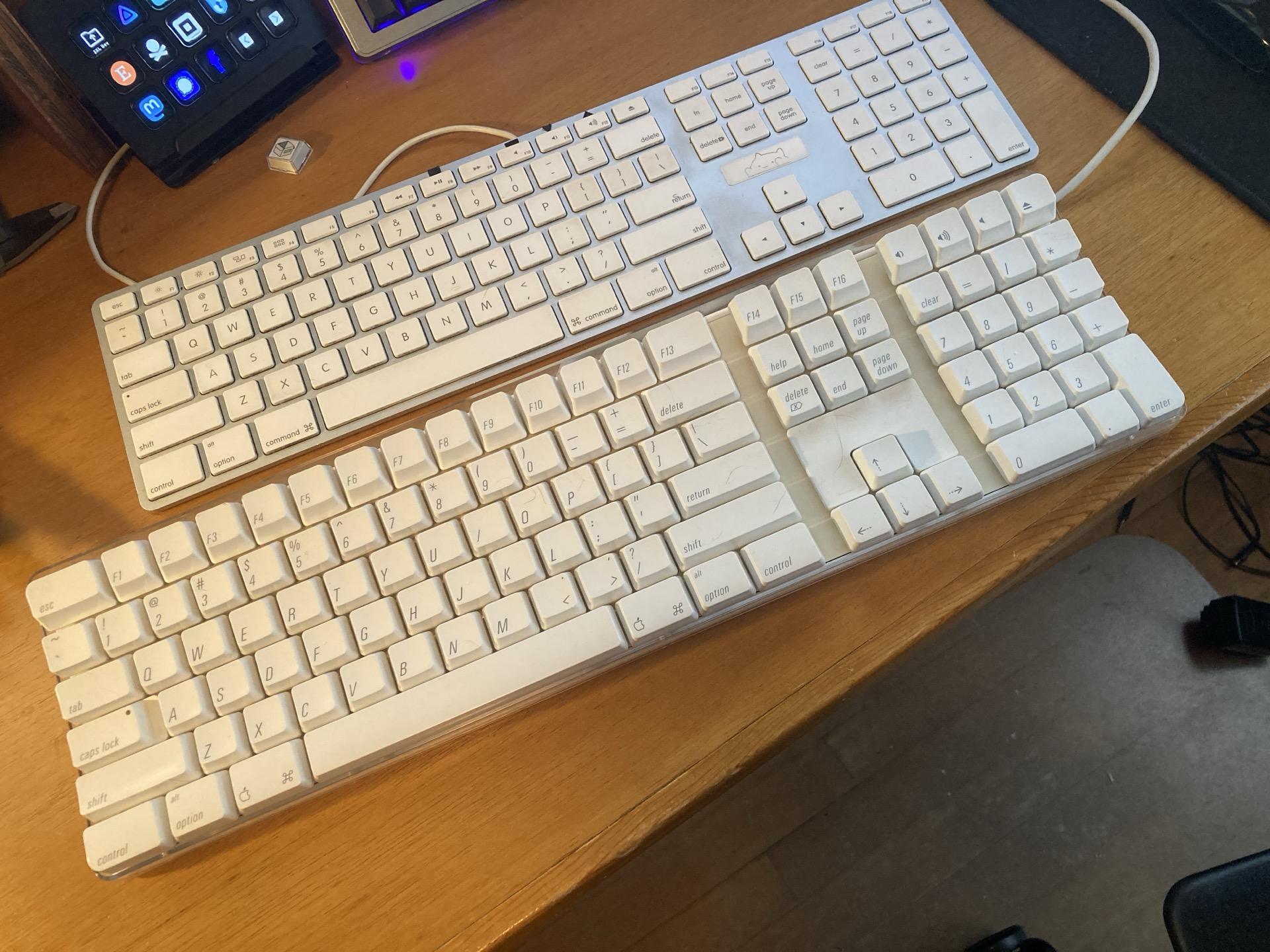
I got myself a new keyboard. After talking to friends who build mechanical keyboards and watching way too many videos on keyboards I decided to haul out my old Apple keyboard and clean it up and put it back together and it was terrible. Just mushy and not enjoyable to type on.

(Also, look at the size difference between these two Apple keyboards!)

Apple Keyboards

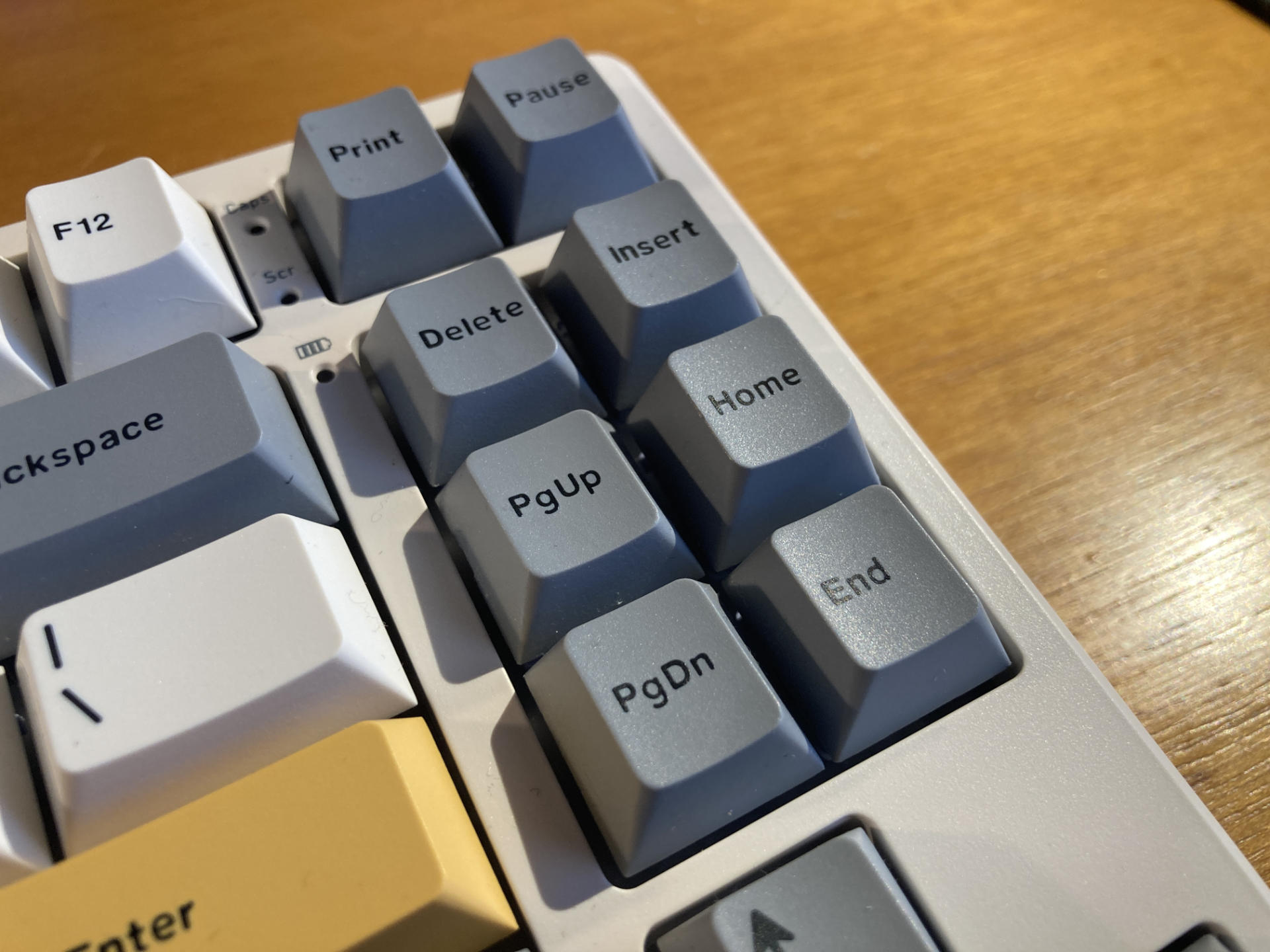
Okay, that Apple Keyboard is crap, so I managed to get this Kisnt KN85 keyboard for under $40 USD which is supposedly a very good price for a mechanical keyboard.

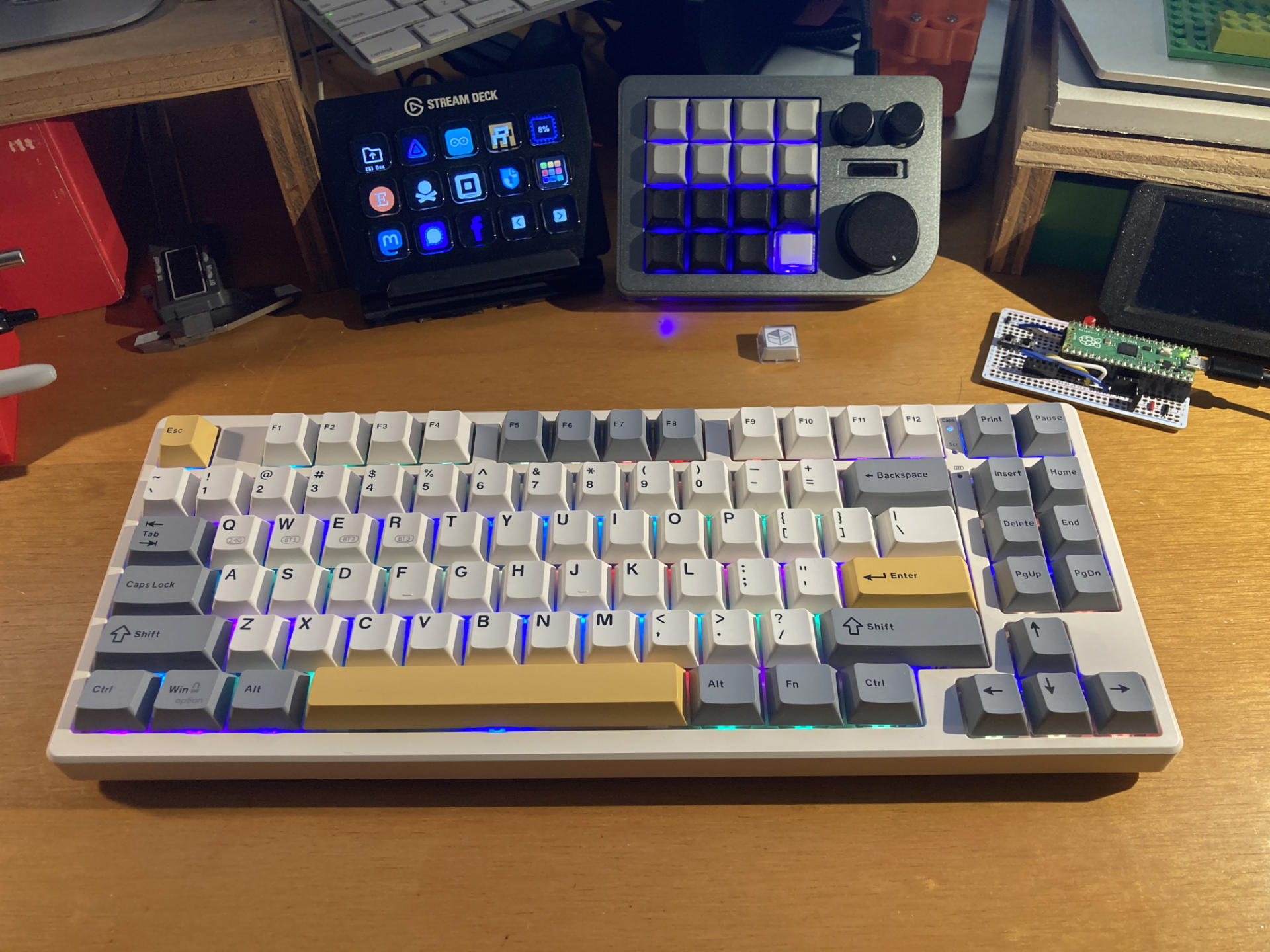
Kisnt KN85 Wireless Mechanical Keyboard

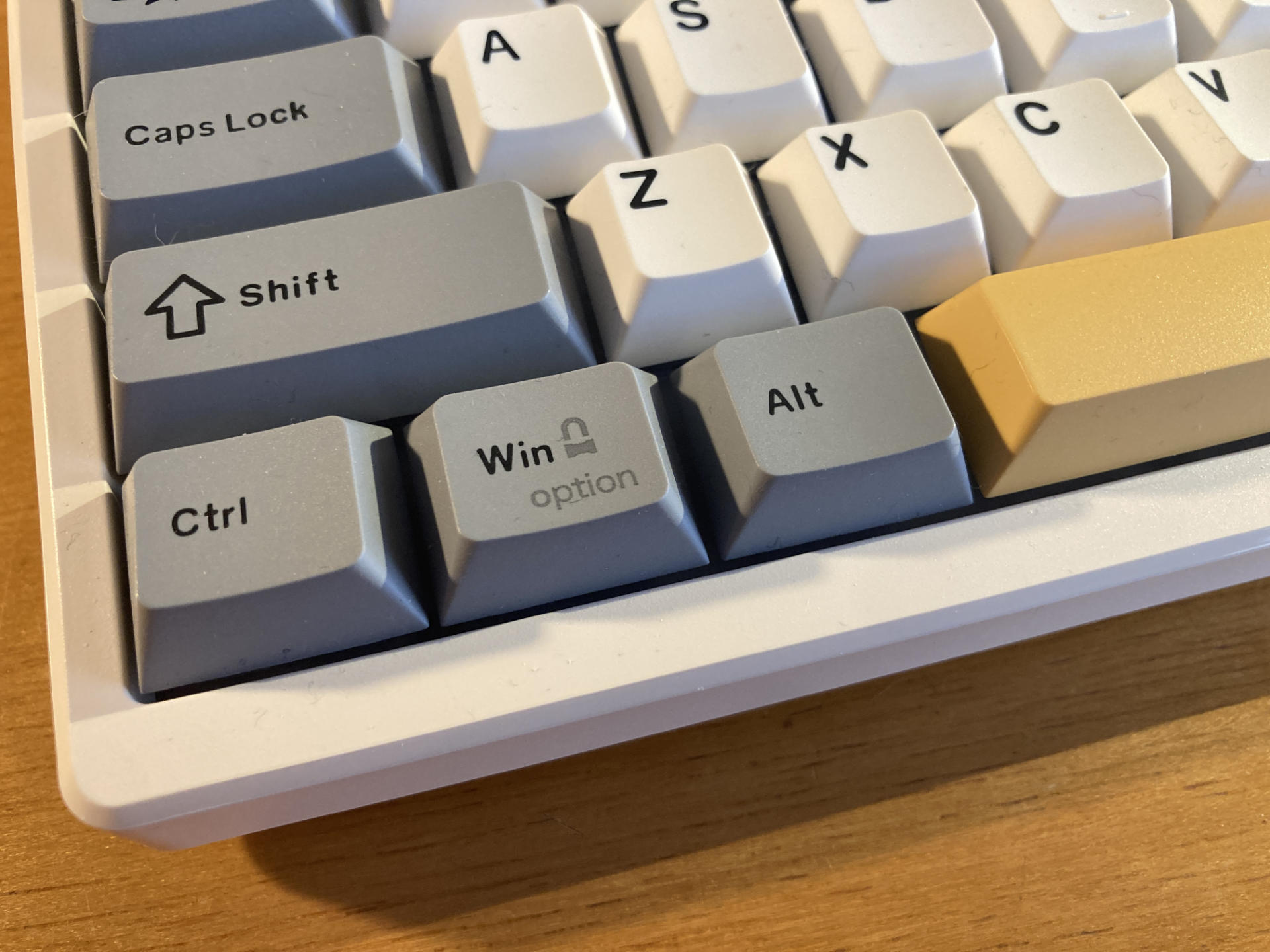
I do wish I could get Command and Option keys but I have yet to find a good option for them. I know it shouldn’t matter but I’d still like it.

I guess this keyboard is thocky or creamy or something. It’s all about the feel and also the sound I guess? It’s pretty wild how deep some people get into this keyboard thing.

Kisnt KN85 Wireless Mechanical Keyboard

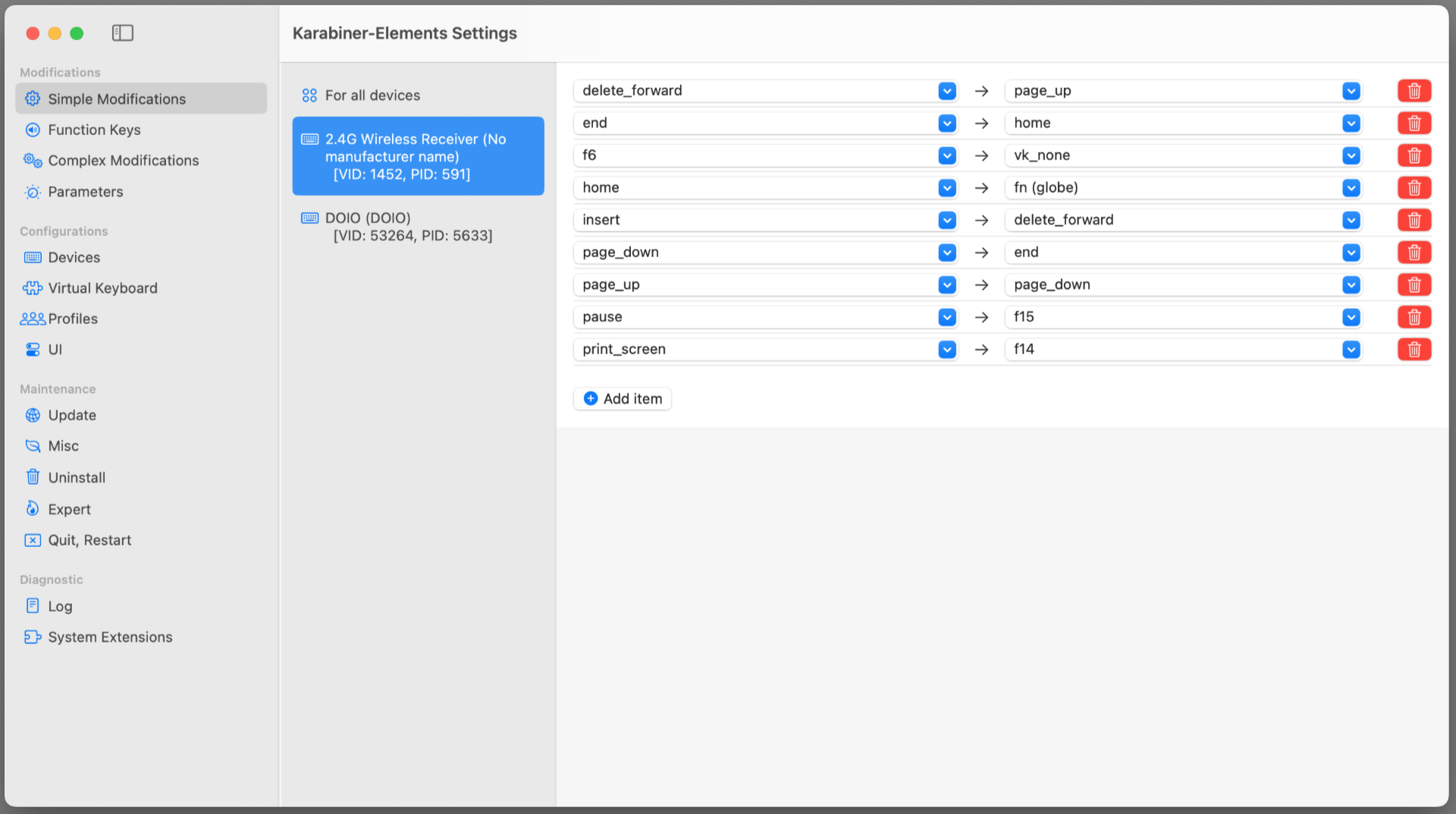
I ended up swapping a few keys around, and then used Karabiner-Elements to remap them. I’m not sure if I’ll move keys around again but it’s nice I have the option.

Karabiner Elements remapping keys

Overall I’m really liking the keyboard. I am still getting used to it, but I find the size and layout nice. I didn’t think I’d care for the RGB lighting but hey, I let it ride… why not!? I do use it wirelessly but I feel like I have to charge it a bit more often than I’d expect. As for the lack of numpad, I realized that 90% of my using the numpad was for entering 2FA numbers and maybe I didn’t need one.

After a few weeks of use I’m feeling pretty good about it.

Kisnt KN85 Keyboard


Note: This post may contain Affiliate Links. Read More.

Categories
Uncategorized

Megalodon (No) Macro Pad

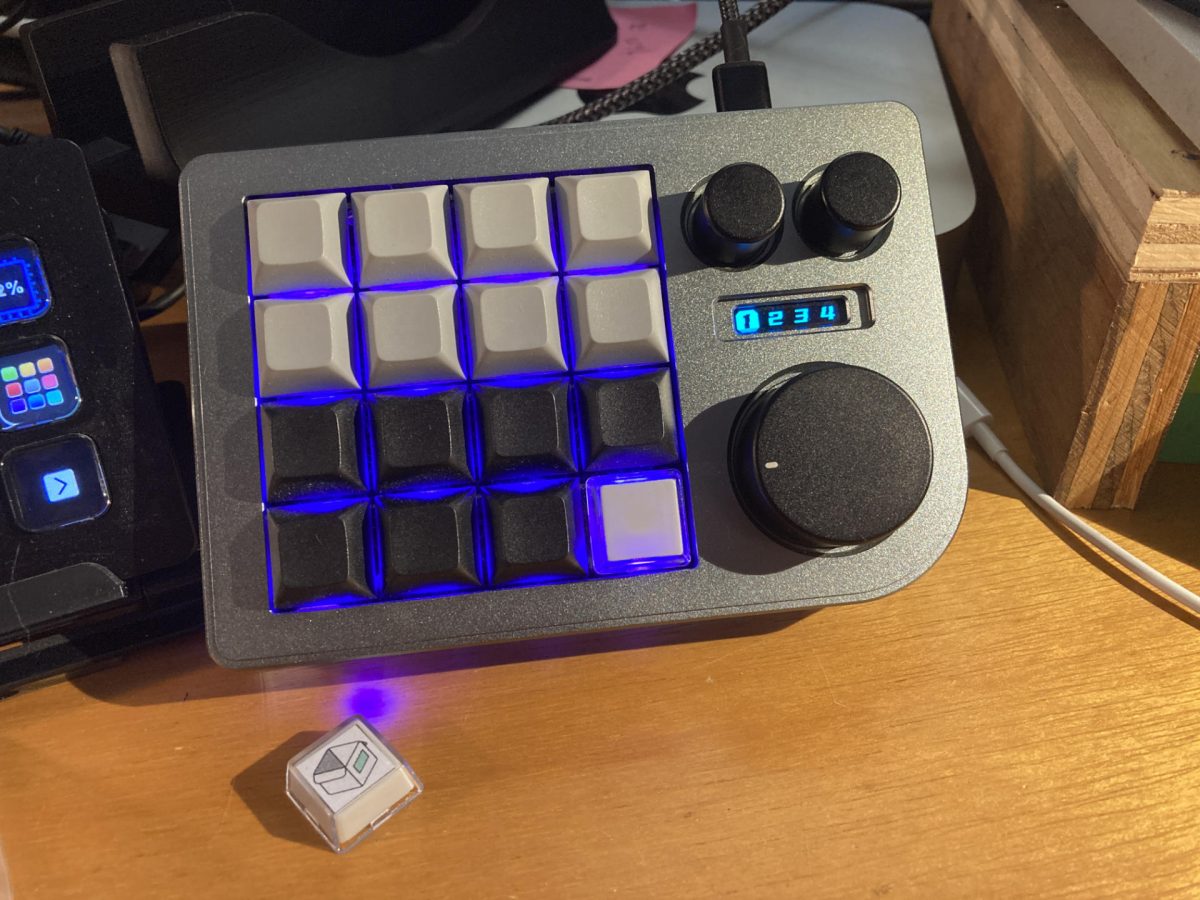
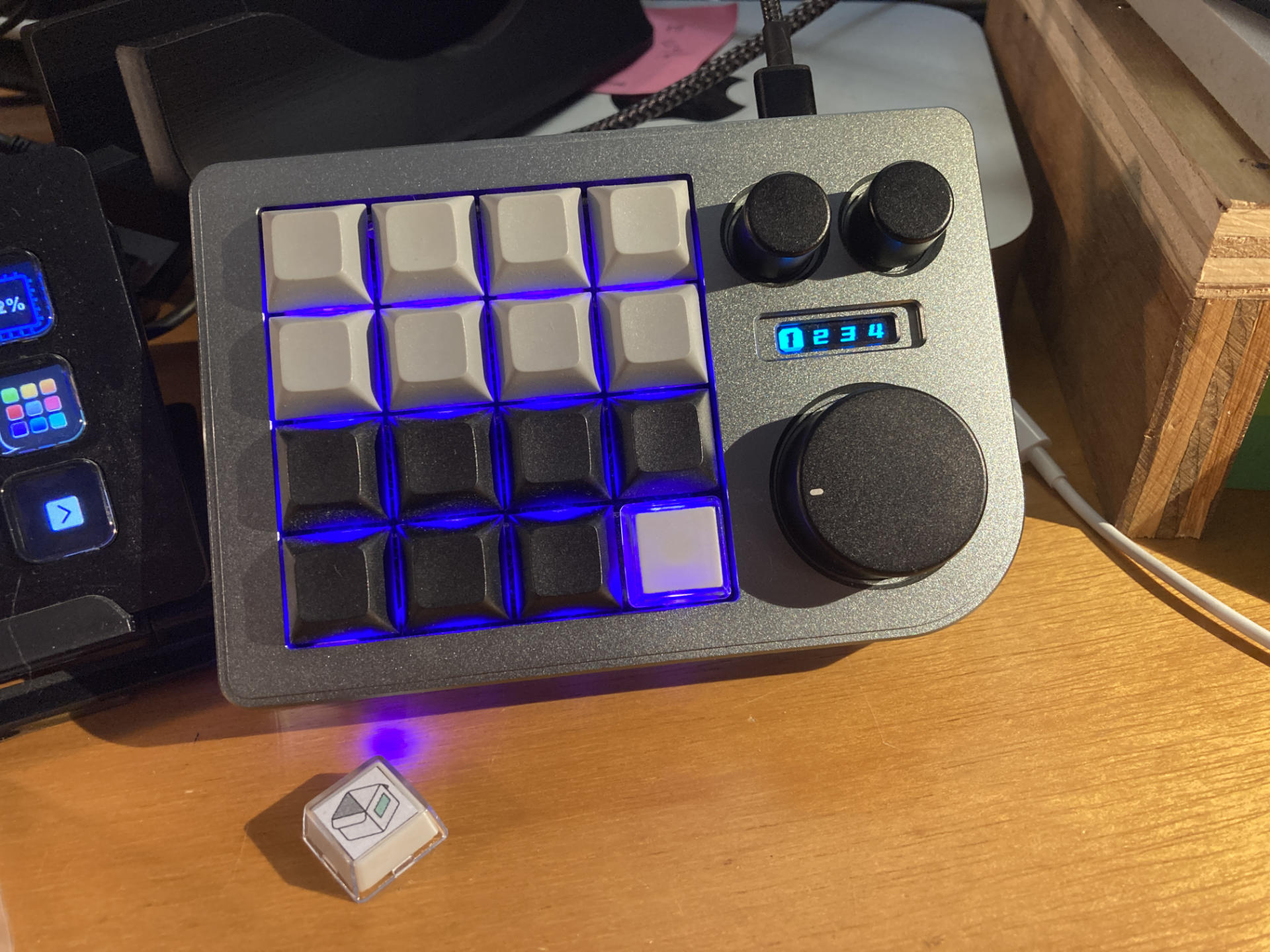
A Megalodon Macro Pad that sucks

Back in 2023 I got this Megalodon Macro Pad for a potential client project. The project never panned out but I’ve still got the macropad so I figured I would put it to use.

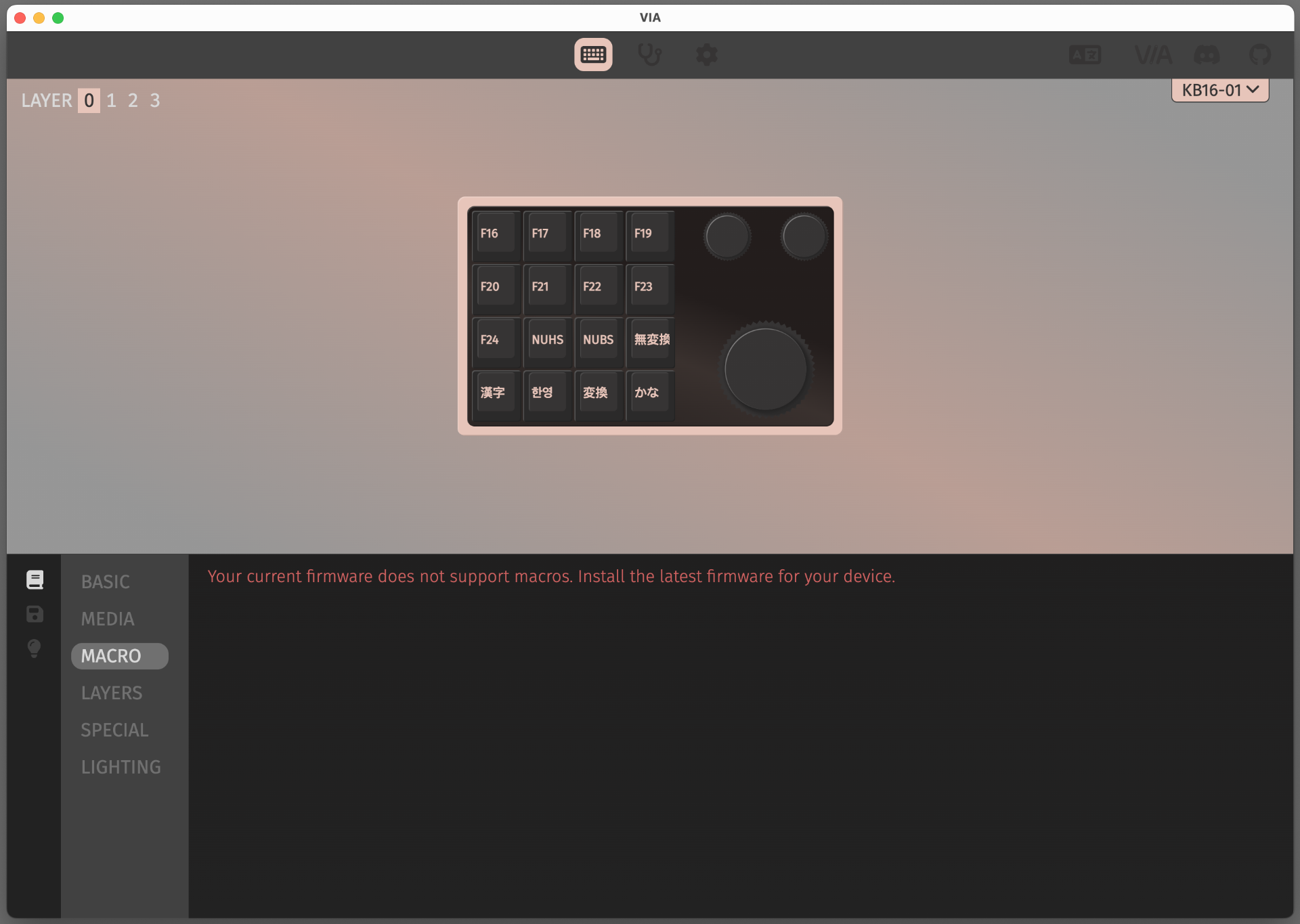
My plan was to assign a key combo to each key, something like command-option-shift-Q, or key commands that would not conflict with other things on my computer. I started making a few macros using Via Desktop (which was probably my first mistake) and things were fine until I got to the fourth macro, at which point it lost all the macros and showed a “Firmware doesn’t support macros” error. Other people had similar issues.

Screenshot of Via software

I tried reflashing the firmware, I tried flashing firmware random people made, I tried using Windows, I tried using Chrome. I think the whole “corrupt EEPROM” theory someone posted about was on the right track…

Anyway, after doing all that multiple times and using Chromium and usevia.app it seemed like I got macros back, but they didn’t work because they did not save and just disappeared after they were created.

The Macro Pad that cannot Macro!

Luckily, I have Keyboard Maestro

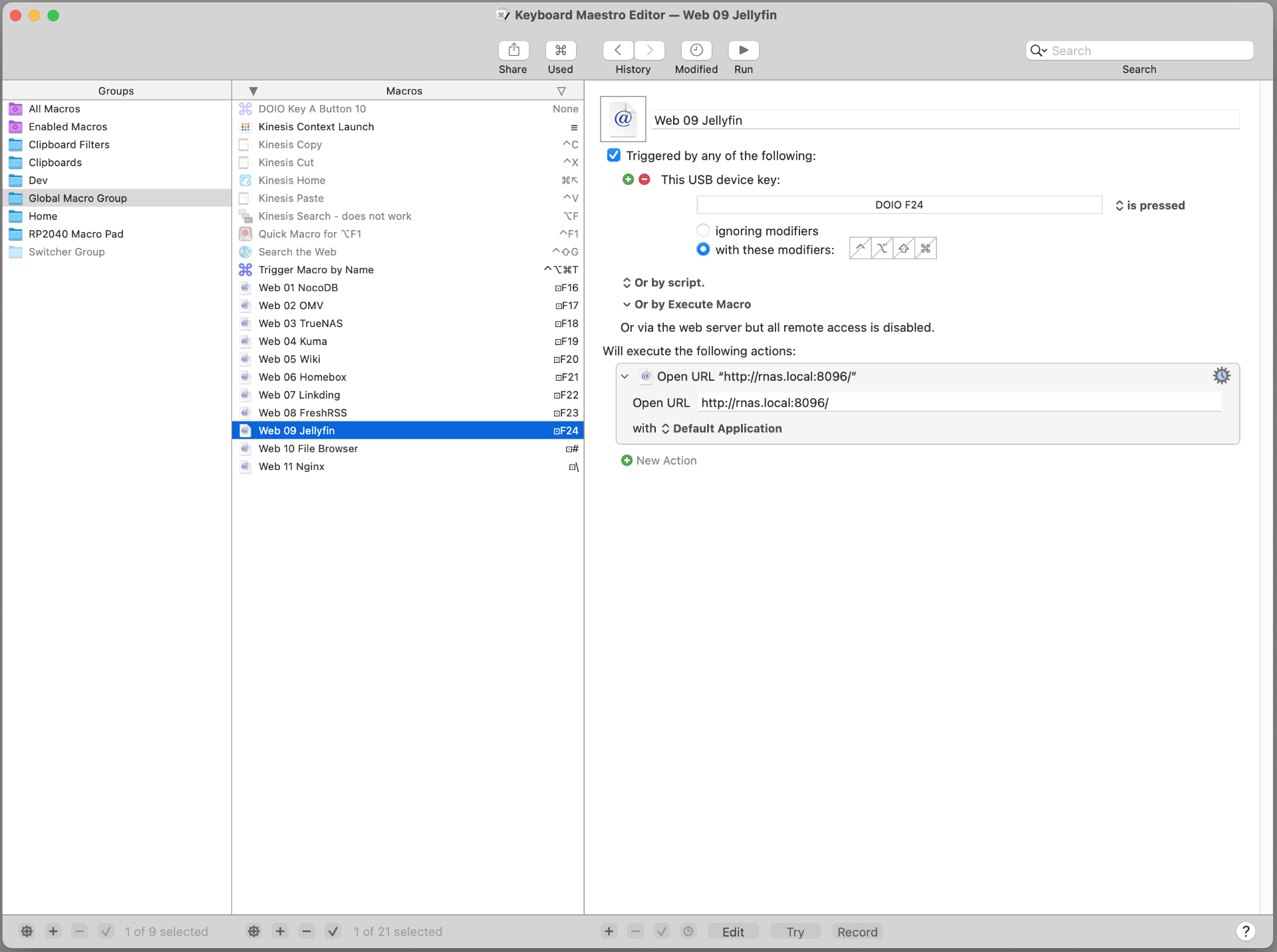
Screenshot of Keyboard Maestro showing settings

My first idea was to set the keys to send F16 through F24, but then I found out Keyboard Maestro only handles F-Keys up to 20. Argh… But wait! You can set Keyboard Maestro to recognize input from a specific device. So that worked and I used F16 through F24.

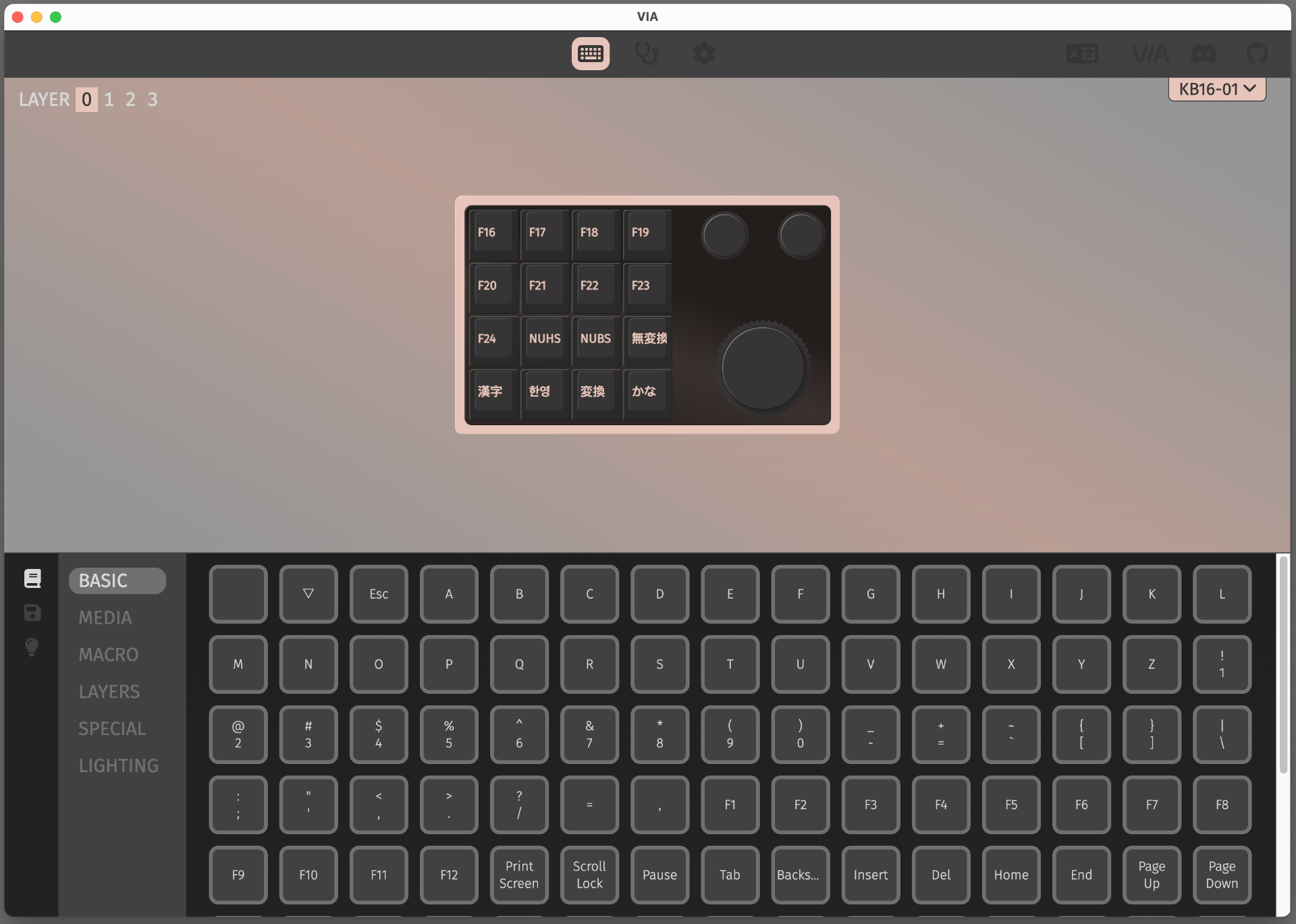
Screenshot of Via software

The Basic screen just has the normal boring keys… not as useful for a macropad.

Screenshot of Via software

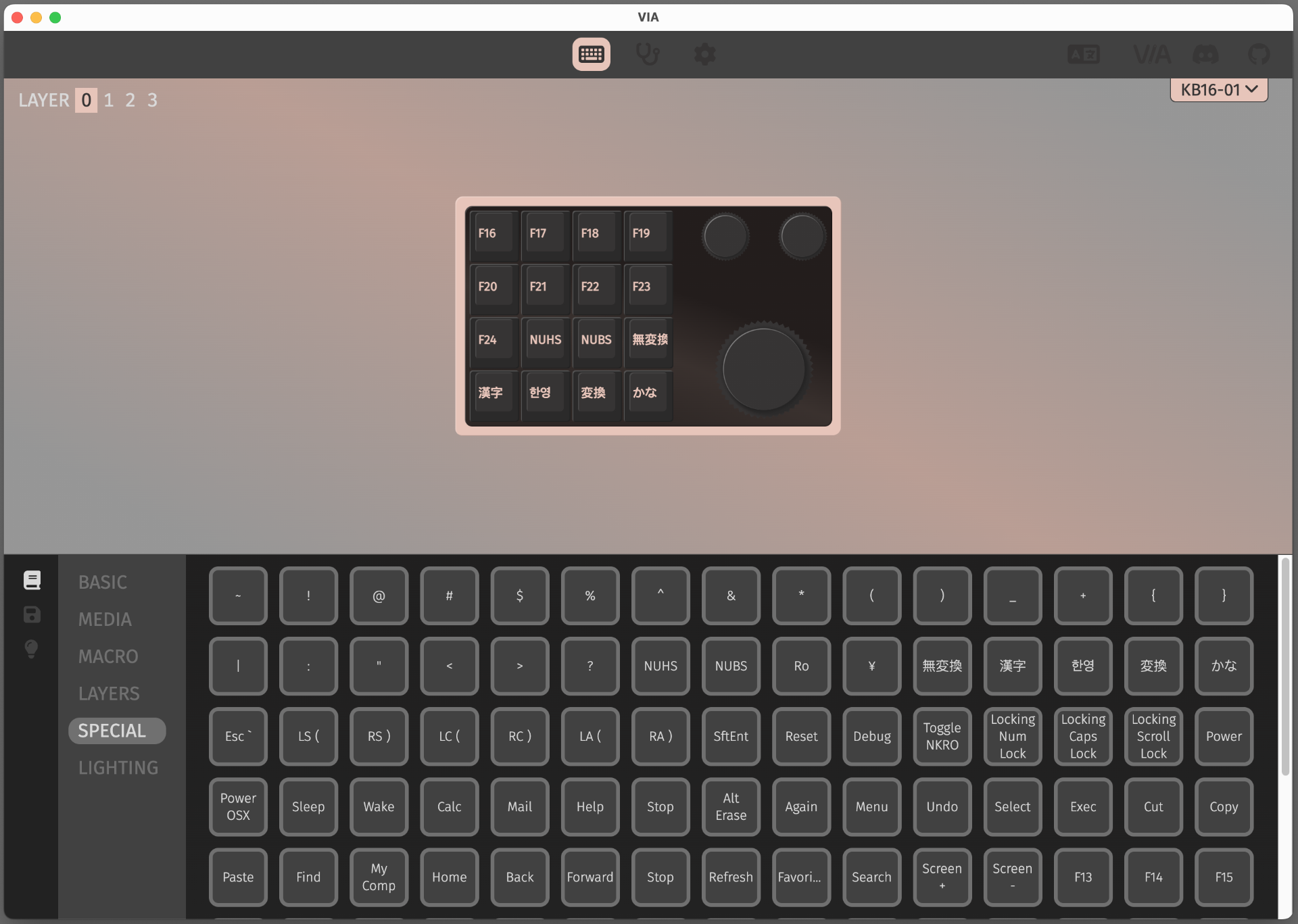
The Special screen is where you’ll find the fancy keys. After I used all the F-Keys I started using International, Japanese, and “non-US” keys, as there is very little chance I will type those on my main keyboard.

Screenshot of text editor showing JSON file

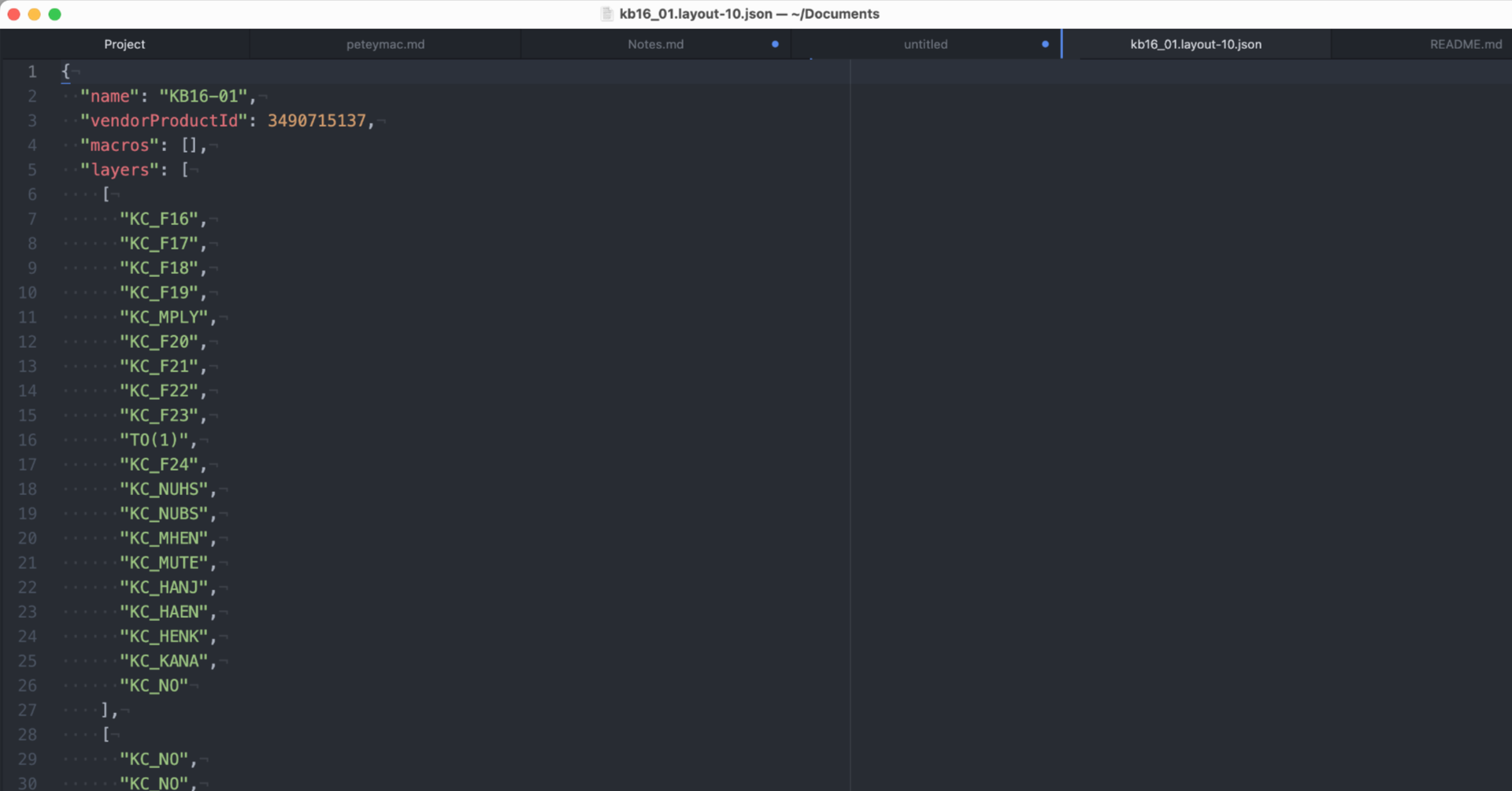
I was able to save the JSON config file and it wasn’t zero bytes like in some previous attempts.

I should also mention there is one troublesome key on the pad. On the bottom row, the third key from the left side stopped working. I removed the keycap and pressed hard on it repeatedly with a small screwdriver handle and eventually it started working again. Weird.

Would I recommend a Megalodon Macro Pad? Hmmm, I don’t know. I got mine for $50 USD and I think it’s quite a bit more than that now, though there may be sales now and then. I had started building my own macropad but never quite finished it, so for now the Megalodon will find some use. It is very well built. It’s solid, metal, and looks nice. Whatever I build will probably be boring looking but get the job done with less fuss.

The Megalodon does run QMK Firmware, which I am still interested in using and learning more about. We’ll see what the future holds I guess!

Categories
Uncategorized

Repairing a Nektar Panorama P4 Keyboard

I recently did repairs on a Nektar Panorama P4 Keyboard. A guy I know got in touch with me and said there was an accident involving someone stepping on a USB cable while it was plugged into the back of the unit. This damaged the USB connector and it no longer allowed the keyboard to show up via USB.

Here’s the main PCB in place. There’s a few ribbon cables that connect it to the rest of the keyboard. I removed them and pulled out the board. Oh, I should note that what took the most time in the disassembly process was removing all the screws holding the case together. I think there were about three dozen!

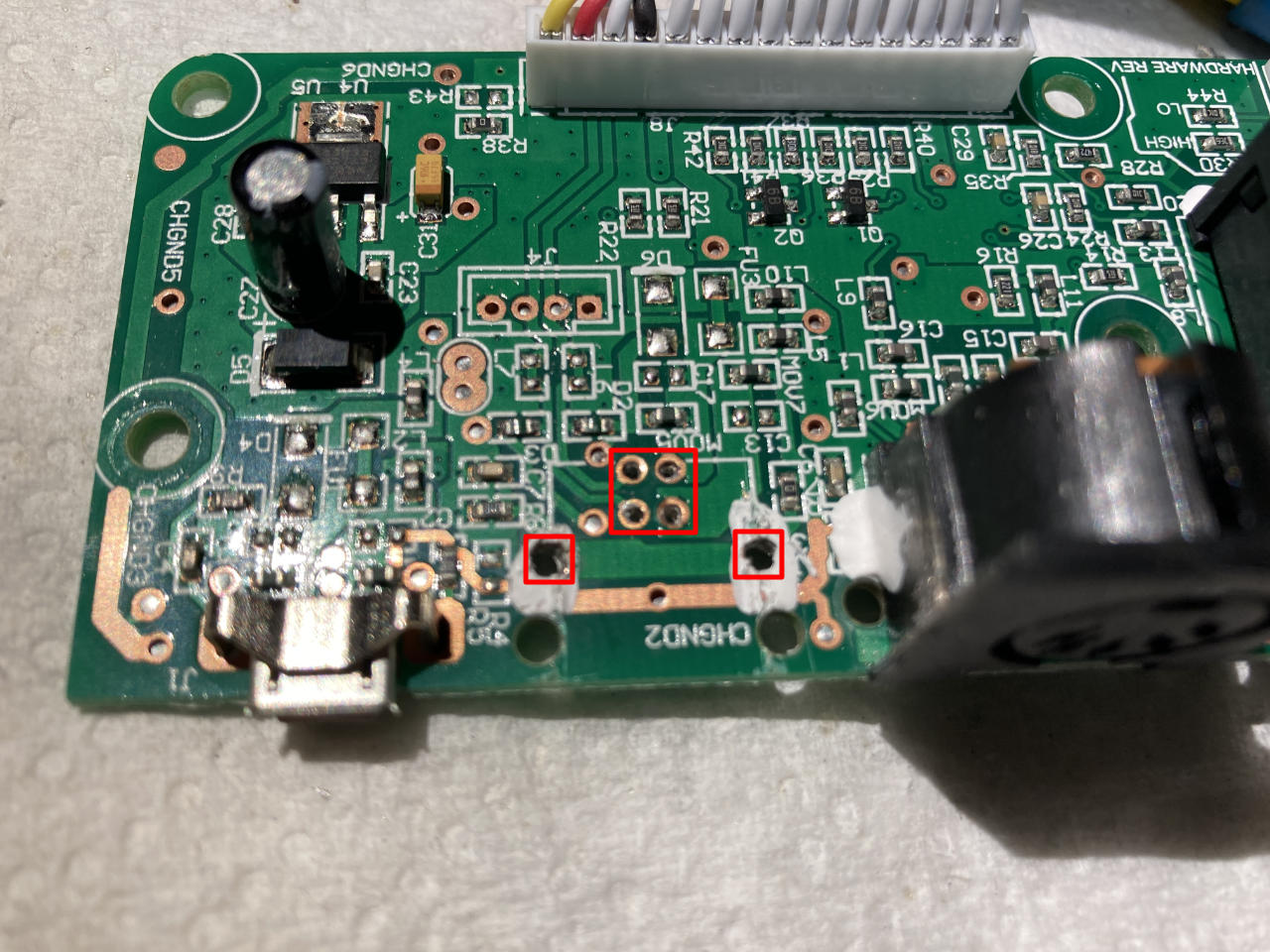
I had to desolder the broken USB jack. It was definitely damaged and pretty much crumbled when I got it off. Some of the holes still had solder in them, so I carefully drilled them out with an 0.8mm bit on my Tiny Drill Press. (The red squares show the holes. The white stuff around the large holes is not damage, but some sort of glue or epoxy that held the jack in place in addition to the solder.)

I grabbed some USB Female Type-B Jack as recommended in this reddit post. Also, take a look at the photo in that post. See how the USB jack has no plastic in the center? Yeah, they used jacks that just had the metal contacts hanging free in the air. Terrible choice! (Below shows the new jack.)

The owner also mentioned a USB plug protector support thing, from this blog post. So I modeled one up for him…

I measured a bunch of my USB cables and, well, they are not all the same. So I printed about four of these supports with different inside dimensions. I figured one might work. (Little did I know the cable for the keyboard was right in the case! Oh well.)

Once I had the keyboard repaired and put back together I fired up GarageBand and made sure it worked, and it did work. Hooray. I also charged next to nothing for the repair because the guy’s cat passed away the week before and I know exactly what that is like.

Categories
Uncategorized

More PCBWay Boards

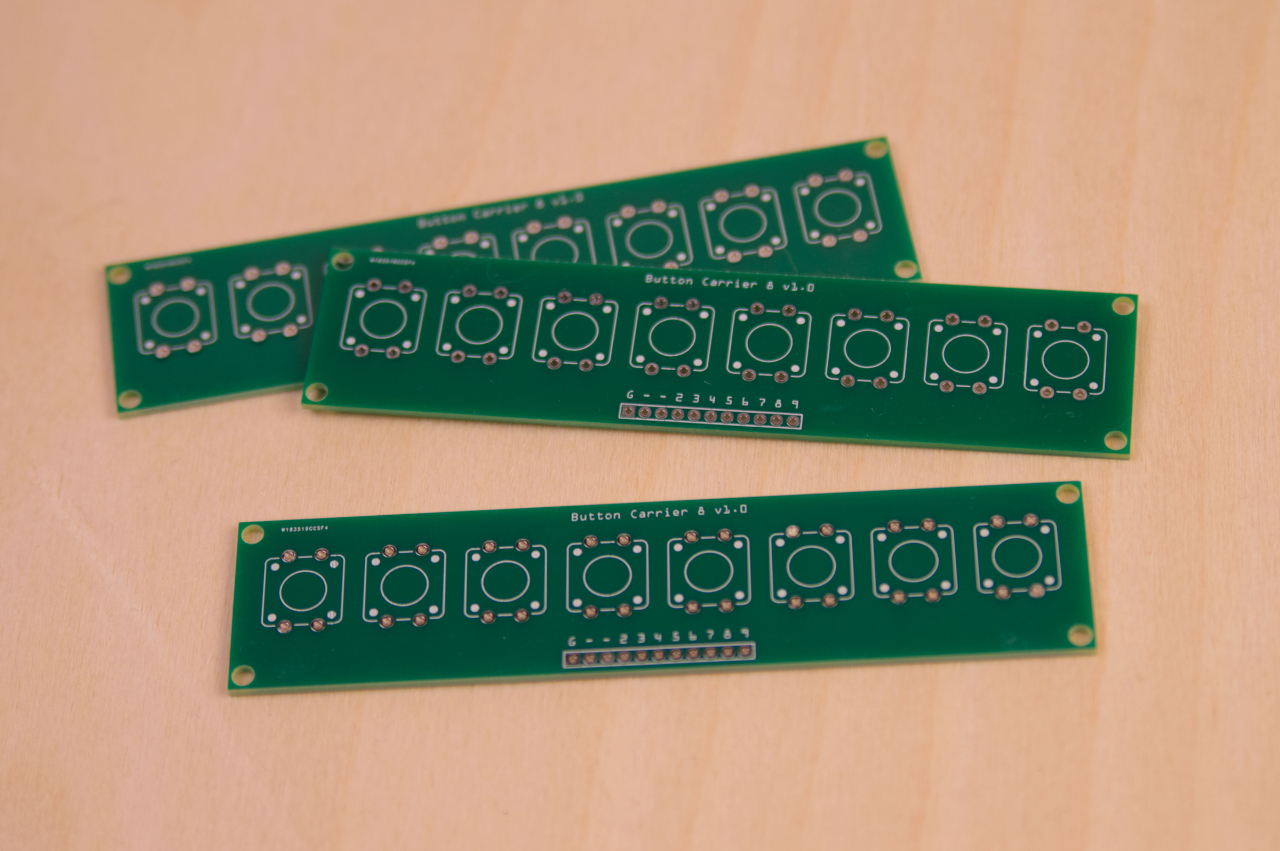
I’ve been working on a number of projects the past few months, and many of them require custom printed circuit boards. A few weeks ago as I was finishing up the design of a new board I got an email from the crew at PCBWay. (You might remember that I had boards made by them a few years ago.)

As luck would have it I was just exporting some Gerber files so the timing was great! I got my boards created by PCBWay and they arrived about two weeks ago. It took me a bit of time to wrap other projects and get things soldered up and programmed, but the boards worked great. Often you don’t get PCBs right the first time, but luckily all my connections were fine (It’s a fairly simple board) but there are a few things I might want to change about the dimensions and the mounting holes.

I’ve been using this as a supplemental USB keyboard. For testing I’ve programmed it to be function keys F13 through F20 (which can then be assigned to key commands for certain applications, like OBS: Open Broadcaster Software.) I’ve also set it up as a MIDI device to trigger sound effects using my SoundProp application. It can also serve as a toggle for your mic and camera in videoconferencing software like Zoom, Google Meet, Microsoft Teams, etc. It’s pretty robust in its capabilities.

I still need to finish up an enclosure for it, and then do more rigorous testing, but so far the boards and functionality have been great. (If there’s interest in these devices, I’ll probably drop a few into the Etsy Shop.)

Categories
Uncategorized

A Big Big Keyboard

Big Keyboard

If you happened to see a post titled 8 Crazy Keyboards That Will Trick Out Your Typing over on the Make Blog, you may have seen the big keyboard I worked on last year.

It was for a graphic design station we built for “Word Headquarters” at the Betty Brinn Children’s Museum. (I did this project as a contractor, before I worked at the Exhibits Shop.) Here’s a bunch of images that show the building of the keyboard.

Concept #1

This is the concept Mike came up with, which was to use lots of different sized pieces of wood, CNC’d to look like letterpress type (though obviously not reversed, as they would be unreadable.) This was definitely a fun design, but things always change along the development path…

Layout

Layout

While Mike was working on a design, I mocked up a drawing showing the spacing I thought would work using arcade buttons and how close together we could get them. This helped determine the overall size of the keyboard. Things could obviously get more spaced out, but this was the tightest we could go.

Teensy++ 2.0

I’ve built plenty of keyboards over the years using Teensy development boards so there wasn’t too much new happening on that front. Still, it’s always good to breadboard things up for testing.

Concept #2

We ended up going with a simpler and cleaner key layout than the original concept. As you’ll see later, we added variations elsewhere in the piece.

Teensy++ 2.0

Did I mention the keyboard would have 46 keys? Well, 46 is the number of digital inputs you can get on a Teensy++ 2.0 board. That’s every single input. (And yes, there was an issue using pin 6 which eventually got solved.)

Buttons!

Here’s a big piece of HDPE that’s been milled out for all of the buttons. Yes, that’s a lot of buttons! (There are 47 buttons because we used two for the spacebar.)

Wiring!

Here’s the back of the big piece of HDPE. That’s a lot of wires! We used slip-on connectors rather than soldering wires to the buttons (for ease of maintenance) and the other ends of the wires all go to screw terminals.

Teensy++ 2.0

All wires run to screw terminals on an Adafruit Perma-Proto board. It’s not the cleanest thing, but the deadline was tight on this, and the impending launch date meant we had to get it all done and working, even if it wasn’t the prettiest under the hood. (And yes, this is mid-wiring… not everything is connected yet!)

Wiring!

More wiring, more wiring, labels for everything… And testing as we go.

More Wires!

Here’s the piece of Alupanel attached to the top of the HDPE. It also serves to hold the wood keys in place. Each key has a lip at the bottom to hold it captive and is held up by the spring in the arcade button. (At some point I did weight tests to determine a safe weight for each key so that it wouldn’t press down on the button too much.)

Wood Keys

Since we went with a uniform size for the keys, we added some variety in the choice of woods used. You may notice there is no return key. We eventually replaced the exclamation point with a return key. (We honestly didn’t think we’d need one due to the way the application allowed the use of text, but like all exhibits you put on the museum floor, things change over time as you learn how they are used.)

Wood Keys

I think the nice, clean, readable type turned out great. I’d still like to see the really varied version that was the first concept some day, but this works for now!

Wood Keys

There’s about 650 lines of code running on the Teensy, including code for handling the shift key with every key, so even though you don’t see the exclamation point anymore, you can get one by holding down shift and typing the number “1” key. With the letters you get lower case and upper case, and with the numbers and other non-alpha keys you get whatever would normally show up with the shift key on a standard US keyboard.

In the end, this was an awesome project to be involved in. Thanks to Kathy, Mike, Sam, and Dom for contributing to the entire thing.